# Resources - Metadata Configuration
# Authority Control
### Authority Control Jobs
The WRLC Network Zone runs three different jobs in Alma for authority control every day. These jobs apply only to Network Zone-linked bibliographic records that have been added or updated since the last time the job was run, also to bibliographic records with subject headings linked to authority records that have been updated since the last job was run.
1. Link BIB Headings job : links authority headings to an authority record
2. Preferred Term Correction job : changes the heading from the non-preferred term to the preferred term.
3. Handle Local Authority Record Updates job : updates $0 in the bibliographic record and performs relinking for local authority records.
More information can be found in the [Alma Knowledge Center](https://knowledge.exlibrisgroup.com/Alma/Product_Documentation/010Alma_Online_Help_(English)/Metadata_Management/060Working_with_Authority_Records#Jobs_Related_to_Authority_Records).
Ex Libris runs a re-indexing job on all repository records twice a year (from November to January, and from May to July). This process applies both authority control jobs to all records in the repository; this is the only time that the jobs will run on old records as well as new ones.
The WRLC did not have authority control jobs running in the Network Zone until 2022. In the Fall of 2021, the WRLC Metadata Committee reviewed authority control in Alma and came to the conclusion that, although the jobs are not perfect, the benefits outweigh the drawbacks. A detailed description of this review can be viewed in the [Authority Control Testing Fall 2021](https://docs.google.com/document/d/1b8x16c4RAa3WDVrEeEO6yG3jFX-Efs94nWb19z4n2so/edit#heading=h.mlv4luawgvu2) document created by the WRLC Authority Control Subgroup. The official WRLC Policy on Authority Control can be found in the [WRLC Network Zone Bibliographic Record Policies document](https://alma.wrlc.org/books/resources-metadata/page/wrlc-network-zone-bibliographic-record-policies#bkmrk-authority-control-jo).
### Authority Control Rules
In addition, WRLC created several Authority Control rules to mitigate some of the mistakes commonly committed by the Link BIB Heading and Preferred Term Correction jobs.
The jobs and rules mentioned above are configured in the Network Zone, and therefore only apply to records linked to the Network Zone. Below are are the current configurations in the WRLC Network Zone for authority control.
#### Configuration > Resources > General > Authority Control Rules
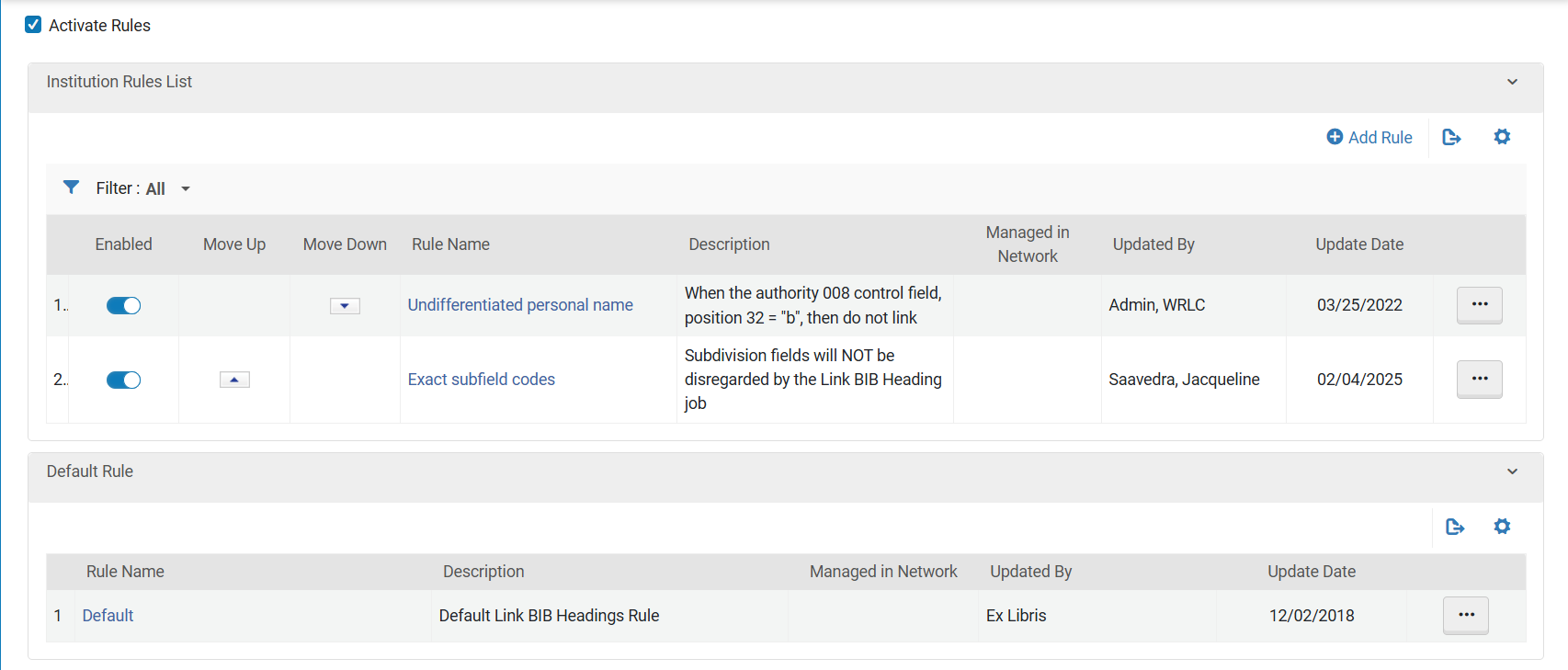
Link BIB Headings Tab
[](https://alma-documentation-bookstack-stage.azurewebsites.net/uploads/images/gallery/2025-02/authority-control-1.PNG)
**Undifferentiated Personal Name** : when the authority 008 control field, position 32 = "b", then do not link
**Exact subfield codes** : Subdivision fields will NOT be disregarded by the Link BIB Heading job
#### Configuration > Resources > General > Authority Control Rules
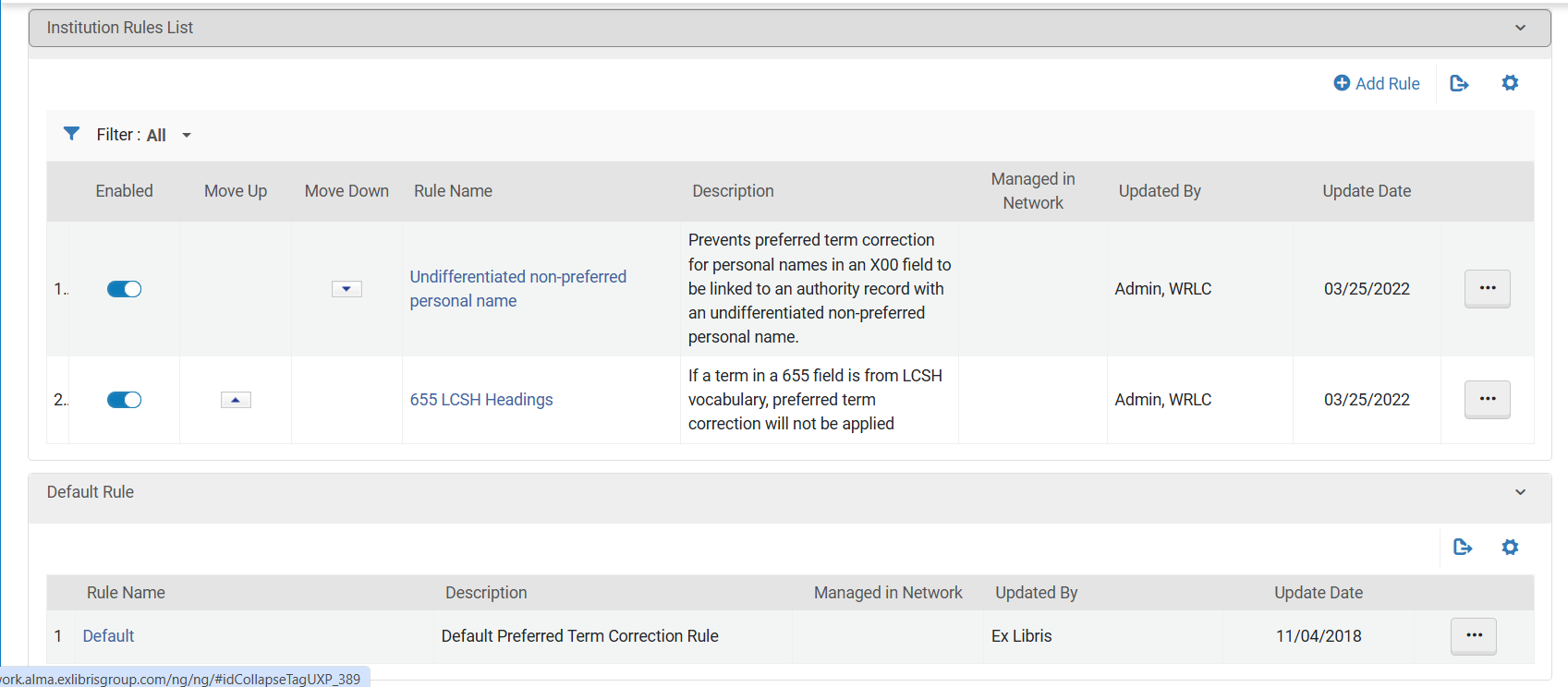
Preferred Term Correction Tab
[](https://alma-documentation-bookstack-stage.azurewebsites.net/uploads/images/gallery/2025-02/authority-control-2.PNG)
**Undifferentiated non-preferred personal name** : Prevents preferred term correction for personal names in an X00 field to be linked to an authority record with an undifferentiated non-preferred personal name
**655 LCSH Headings** : If a term in a 655 field is from LCSH vocabulary, preferred term correction will not be applied
Resources :
- [Working with Authority Records](https://knowledge.exlibrisgroup.com/Alma/Product_Documentation/010Alma_Online_Help_(English)/Metadata_Management/060Working_with_Authority_Records)
- [Authority Control Rules](https://knowledge.exlibrisgroup.com/Alma/Product_Documentation/010Alma_Online_Help_(English)/Metadata_Management/060Working_with_Authority_Records/Authority_Control_Rules)
- [WRLC’s Authority Control Testing Fall 2021](https://docs.google.com/document/d/1b8x16c4RAa3WDVrEeEO6yG3jFX-Efs94nWb19z4n2so/edit?usp=sharing)
# Metadata Editor Warnings (MARC21 Bib Extensions)
When a record is opened in Alma’s Metadata Editor, Alma checks the record for a variety of characteristics such as missing information, invalid information, duplicate records, and so forth. If an issue is found, it is presented as a warning at the bottom of the screen. These warnings are controlled in Alma configuration through extension packs, which are xml files that describe the use and function of each field in MARC21.
In addition to the out-of-the-box extension packs, the WRLC Network Zone has both added and edited several extension packs in an effort to minimize the number of incorrect warnings in the Metadata Editor. The extension packs in the WRLC NZ that have been edited from the out-of-the-box configuration are for MARC fields 082 and 590; the new extension packs that have been added to the WRLC NZ are for MARC fields 012, 019, 029, and 891.
Because this is configured in the Network Zone, it is only applicable to records linked to the Network Zone. If your institution would like to recreate these configurations for Institution Zone only records, the NZ settings would need to be recreated in your Institution Zone configuration.
# Institution Zone Instructions
Use the following instructions below if you wish to recreate the NZ settings in your own IZ
## User Roles Needed :
- Catalog Administrator
## Instructions :
1. Go to Configuration > Resources > Cataloging > Metadata Configuration
2. Choose the MARC21 Bibliographic active profile
3. On the Profile Details page, click Shared Extensions
4. Download each of the extension packs contributed by 01WRLC\_NETWORK. For each, an xml file will be saved to your Downloads folder in your computer.
5. Download the extension pack for MARC field 029 (contributed by 01CSCU\_WCSU). An xml file will be saved to your Downloads folder in your computer.
6. Return to the Profile Details page, and click Add Extensions (to Institution)
7. Upload one of the newly downloaded xml files, then click Add Extensions
8. Repeat the steps above for each extension
9. Return to the Profile Details page, and click the blue Deploy button at the top right-hand corner of the screen
# Resources :
- [WRLC Metadata Editor Warnings Submitted for Correction in Validation Profile](https://docs.google.com/spreadsheets/d/12F-XY4QLLcXIgYW9Ux3C4vM0zTn72b_52WJ2dgqueHo/edit#gid=0)
- [WRLC NZ MARC21 Bib Extension packs](https://drive.google.com/drive/folders/1UNcD1R1FK7Bxk6Zm5nSG4Wna-k-KN1rJ)
- [Editing MARC-Based Profiles with Extension Packs](https://knowledge.exlibrisgroup.com/Alma/Product_Documentation/010Alma_Online_Help_(English)/Metadata_Management/210Metadata_Management_Configuration/Configuring_Cataloging#Editing_MARC-Based_Profiles_with_Extension_Packs)
Posted 03/14/2023 by Jackie Saavedra (WRLC Network Zone Manager)
# Merge Rules
It is WRLC policy to use one of three specific merge rules when merging records; these rules were written so as to preserve local WRLC notes in the bib record. The decision to use specific WRLC merge rules was made by the WRLC Metadata Committee in [July of 2018](https://www-libraries-wrlc-org.proxywcl.wrlc.org/content/metadata-committee-minutes-july-27-2018).
#### What are the three WRLC merge rules?
All of the rules can be found in the Metadata Editor under the **Rules > Merge > Shared** folder
##### ***1. CONSORTIUM NZ / IZ Overlay all fields but local***
***DESCRIPTION : CONSORTIUM NZ / IZ Overlay all fields but local for Integration Profile, Import Profile, Combine and Merge Inventory***
[](https://alma-documentation-bookstack-stage.azurewebsites.net/uploads/images/gallery/2023-10/merge-rules-11.PNG)
[](https://alma-documentation-bookstack-stage.azurewebsites.net/uploads/images/gallery/2023-10/merge-rules-12.PNG)
There are two identical copies of this rule; one that is saved in the Network Zone (and is used on NZ records), and the other that is saved in the Institution Zone (and is used for IZ only records).
This rule is to be used for most merge cases, specifically for
- integration profiles
- import profiles
- combine and merge inventory function.
For both integration and import profiles, the primary record is the existing record in Alma; for the combine and merge function, the primary record is the record in the left pane of the Metadata Editor (the one that is opened first). For more information about primary and secondary records as they pertain to merging, please see the Knowledge Center page on [Primary Records](https://knowledge.exlibrisgroup.com/Alma/Product_Documentation/010Alma_Online_Help_(English)/Metadata_Management/016Working_with_Rules/030Working_with_Merge_Rules#Primary_Records).
##### ***2.* *CONSORTIUM NZ / IZ Search external overlay all fields but local***
***DESCRIPTION : CONSORTIUM NZ / IZ Overlay all fields but local for Search External Resources***
[](https://alma-documentation-bookstack-stage.azurewebsites.net/uploads/images/gallery/2023-10/merge-rules-13.PNG)
[](https://alma-documentation-bookstack-stage.azurewebsites.net/uploads/images/gallery/2023-10/merge-rules-14.PNG)
There are two identical copies of this rule; one that is saved in the Network Zone (and is used on NZ records), and the other that is saved in the Institution Zone (and is used for IZ only records).
This rule is ONLY meant for merging a record using the “Copy & Merge” function in the “Search External Resources” page of the Metadata Editor.
When copy cataloging using Search External Resources, the primary record is the record found via the external resource (NOT the existing record in Alma). For more information about primary and secondary records as they pertain to merging, please see the Knowledge Center page on [Primary Records](https://knowledge.exlibrisgroup.com/Alma/Product_Documentation/010Alma_Online_Help_(English)/Metadata_Management/016Working_with_Rules/030Working_with_Merge_Rules#Primary_Records).
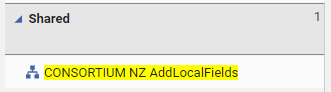
##### ***3. CONSORTIUM NZ Add local fields***
[](https://alma-documentation-bookstack-stage.azurewebsites.net/uploads/images/gallery/2023-10/merge-rules-10.PNG)
There is only one copy of this rule, and it is saved in the Network Zone (because this rule is only used on NZ records).
This rule is to be used when one wishes to import records directly to the Network Zone using an import profile. More information on the official WRLC Network Zone policy for this merge rule can be found [here](https://alma.wrlc.org/books/resources-metadata/page/wrlc-network-zone-bibliographic-record-policies#bkmrk-record-load-profile).
#### What do the WRLC merge rules do?
##### ***CONSORTIUM NZ / IZ Overlay all fields but local for Integration Profile, Import Profile, Combine and Merge Inventory*** rule
Completely replaces the primary record with the secondary record except for the following:
- Leave the 001 unchanged
- Retains the following fields in the primary record
- 246 only if they include $5
- 541, 561, 562, 563, 583, 584, 585
- 500, 501, 506, 526, and 540 only if they are institution- or copy-specific and include $5
- 655 fields only if they include $5
- 700, 710, 711, 730, and 740 only if they include $5
- Retain the following fields in the primary record AND add them from the secondary record:
- 009
- 035 (other than OCoLC)
- 09X
- 59X
- 69X
- 9XX
- Replace the following fields in the primary record unless they don’t exist in the secondary record: 500, 505, 520
- Replace the following field in the primary record with the value from the secondary record: 035 (OCoLC only)
##### ***CONSORTIUM NZ / IZ Overlay all fields but local for Search External Resources***
Keeps the primary record unchanged except for:
- Retain the following fields in the primary record and add them from the secondary record:
- 009
- 049
- 09X
- 246 only if they include $5 that contains a C, D, E, G, L, or V
- 541, 561, 562, 563, 583, 584, 585
- 500, 501, 506, 526, and 540 only if they include a $5 that contains a C, D, E, G, L, or V
- 59X
- 655 fields only if they include $5 that contains a C, D, E, G, L, or V
- 69X
- 700, 710, 711, 730, and 740 only if they include $5 that contains a C, D, E, G, L, or V
- 9XX
- Leave the 035 as is if it contains “OCoLC”, otherwise replace the 035s in the primary record with the 035s from the secondary (Alma) record (this would retain for example *(ViFGM)4673997-gmudb*)
- If the following fields don’t exist in the primary record, add them from the secondary record:
- 500
- 505
- 520
The intention is to create a simple merge rule that will preserve all local field numbers (009, 09X, 59X, 69X, 9XX), regardless of whether or not they are actually coded as a [local extension](https://knowledge.exlibrisgroup.com/Alma/Product_Documentation/010Alma_Online_Help_(English)/100Managing_Multiple_Institutions_Using_a_Network_Zone/03_Managing_Records_in_Consortia/010Network-Managed_Records_in_a_Network_Zone#Adding_Local_Extensions_Using_the_MD_Editor).
##### ***CONSORTIUM NZ Add Local Fields***
Adds only local fields from the imported record to the Network Zone record via an import profile. Please see the relevant [Network Zone Policy](https://alma.wrlc.org/books/resources-metadata/page/wrlc-network-zone-bibliographic-record-policies#bkmrk-record-load-profile) for more information.
- Add the following fields from the secondary record (the record that is bein imported) to the primary record (the Network Zone record)
- 09X with $9 LOCAL
- 246 only if they contain a $5 with a C, D, E, G, L, or V
- 500, 501, 506, 524, 561, 562, 563, 583, 584, 585, 588 that contains a $5 with a C, D, E, G, L, or V
- 59X with $9 LOCAL
- 600, 610, 611, 630, 647, 648, 650, 651, 655 that contains a $5 with a C, D, E, G, L, or V
- 69X twith $9 LOCAL
- 700, 710, 711, 720, 730, 740, 758 that contains a $5 with a C, D, E, G, L, or V
- 77X with $9 LOCAL
- 78X with $9 LOCAL
- 9XX with $9 LOCAL
#### When are merge rules used in Alma?
##### 1. When copy cataloging using an [external resource](https://knowledge.exlibrisgroup.com/Alma/Product_Documentation/010Alma_Online_Help_(English)/Metadata_Management/035Browse_and_Search/030Searching_Resources) in the Alma Metadata Editor.
In this scenario, you will want to configure the *CONSORTIUM NZ / IZ Search external overlay all fields but local* merge rule for your external resource.
[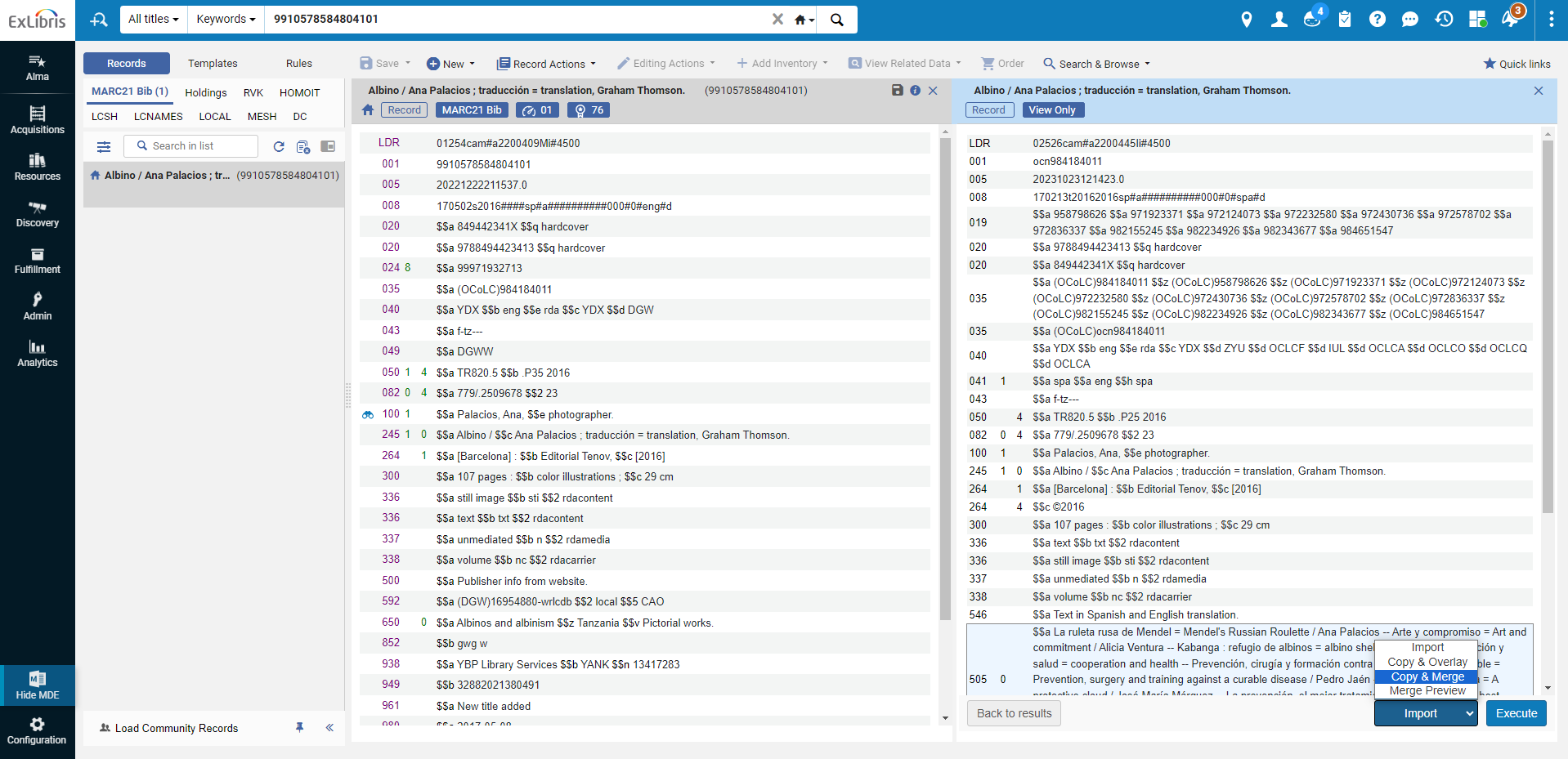](https://alma-documentation-bookstack-stage.azurewebsites.net/uploads/images/gallery/2023-10/merge-rules-1.png)
The merge rule used in this scenario is configured for that specific resource under the [**Configuration Menu > Resources > Search Configuration > External Search Resources**](https://knowledge.exlibrisgroup.com/Alma/Product_Documentation/010Alma_Online_Help_(English)/040Resource_Management/080Configuring_Resource_Management/020Configuring_Search#Configuring_External_Search_Resources) page.
[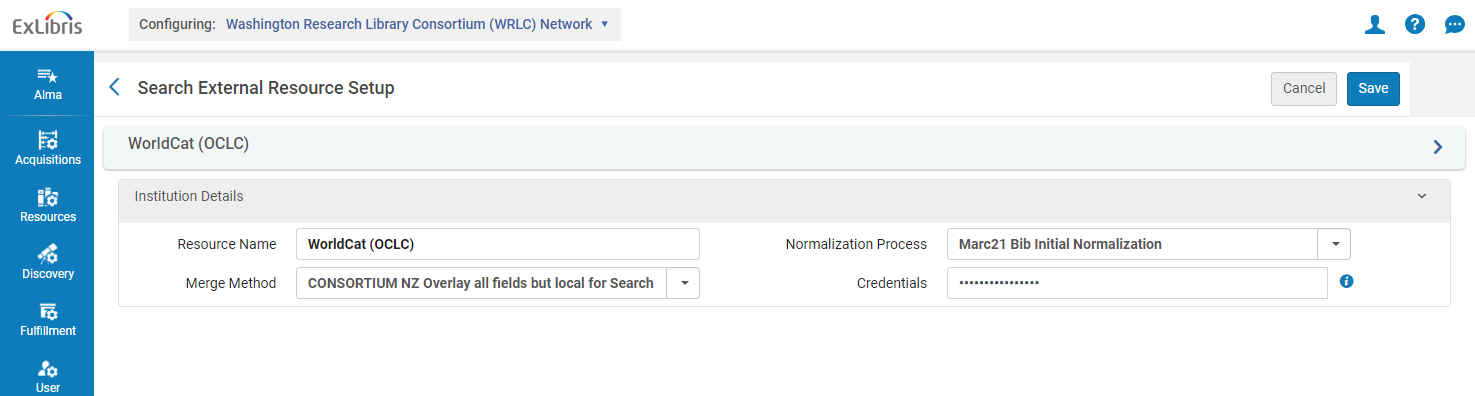](https://alma-documentation-bookstack-stage.azurewebsites.net/uploads/images/gallery/2023-10/merge-rules-2.PNG)
##### 2. When importing records using an import profile
Under the Match Actions section of an import profile, you can choose which merge rules to use.
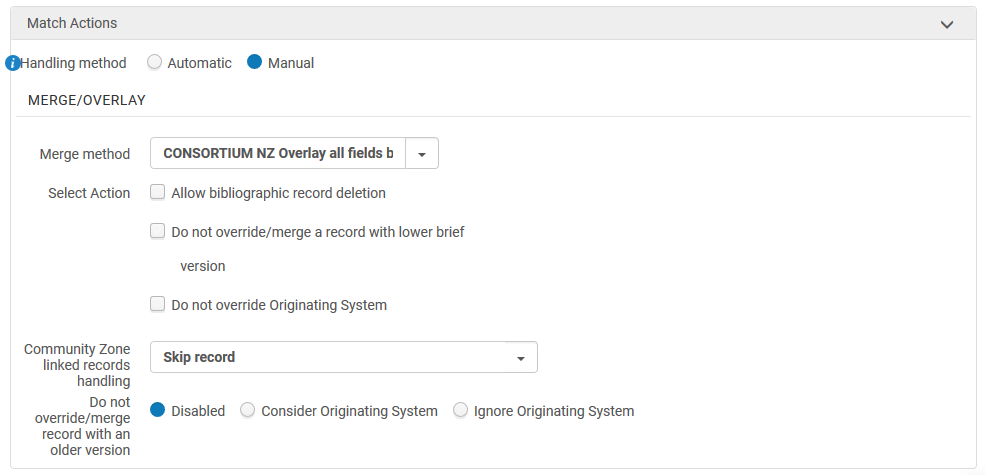
In this scenario, you will want to use the *CONSORTIUM NZ / IZ Overlay all fields but local* merge rule when importing records into the Institution Zone.
When importing records directly into the Network Zone, you must use the ***CONSORTIUM NZ Add local fields*** rule. This is according to WRLC Network Zone policy (see below).
> **Record load profile**
>
> **Policy Statement:** Record load profiles should generally only import to the Institution Zone; the Use Network Zone setting for each institution’s import profile should be set to No.
>
> Import profiles can match to the Network Zone, but if a matching record is found the NZ record must be used (only local fields may be added), and if a matching record is not found the incoming record must be imported to the IZ only. To use this method, the following settings should be used: Use Network Zone: “Yes”, Upon Match: “Merge”, Merge method: “CONSORTIUM NZ AddLocalFields”, Upon No Match: “Import to IZ.”
##### 3. When importing records from OCLC Connexion to the Institution Zone
In this scenario, you will want to configure the *CONSORTIUM NZ / IZ Overlay all fields but local* merge rule for your IZ's OCLC Connexion Integration Profile.
Alma uses an Integration Profile (to be found under the **Configuration Menu > General > External Systems > Integration Profiles**) to import records from OCLC to Alma. If the Integration profile is configured to not use the Network Zone (see image below)...
[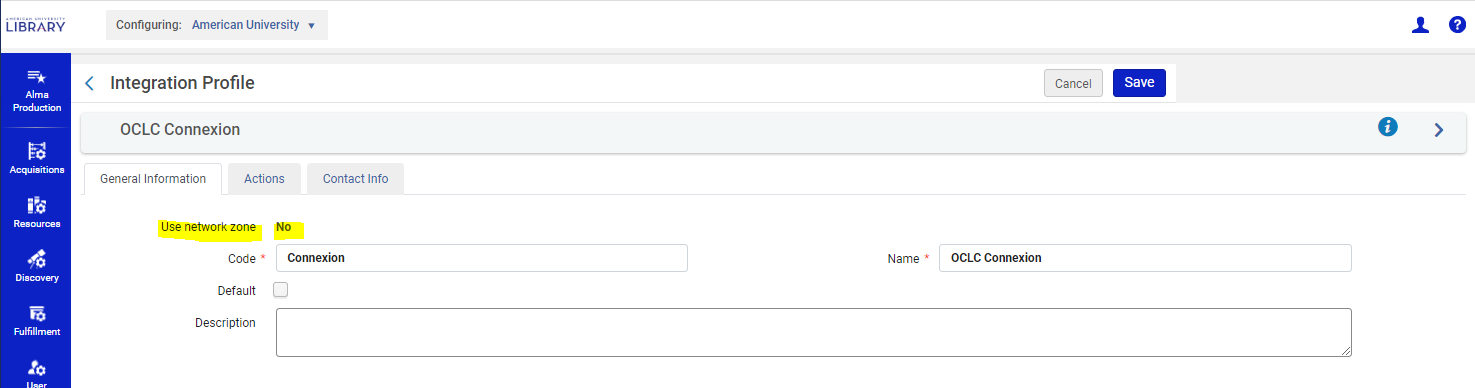](https://alma-documentation-bookstack-stage.azurewebsites.net/uploads/images/gallery/2023-10/merge-rules-5.PNG)
...then Alma will use the merge method configured under the Actions tab of the Integration Profile for merging.
When Alma finds a match with an imported OCLC record and a pre-existing Institution Zone record (the system will use the criteria stipulated under the Serial match method and Non serial match method configured in the Integration Profile; for more information on match methods, see the WRLC NZ policy on [Bibliographic Utilities](https://alma.wrlc.org/books/resources-metadata/page/wrlc-network-zone-bibliographic-record-policies#bkmrk-bibliographic-utilit)), the two records will be merged using the merge method chosen in the Integration Profile.
[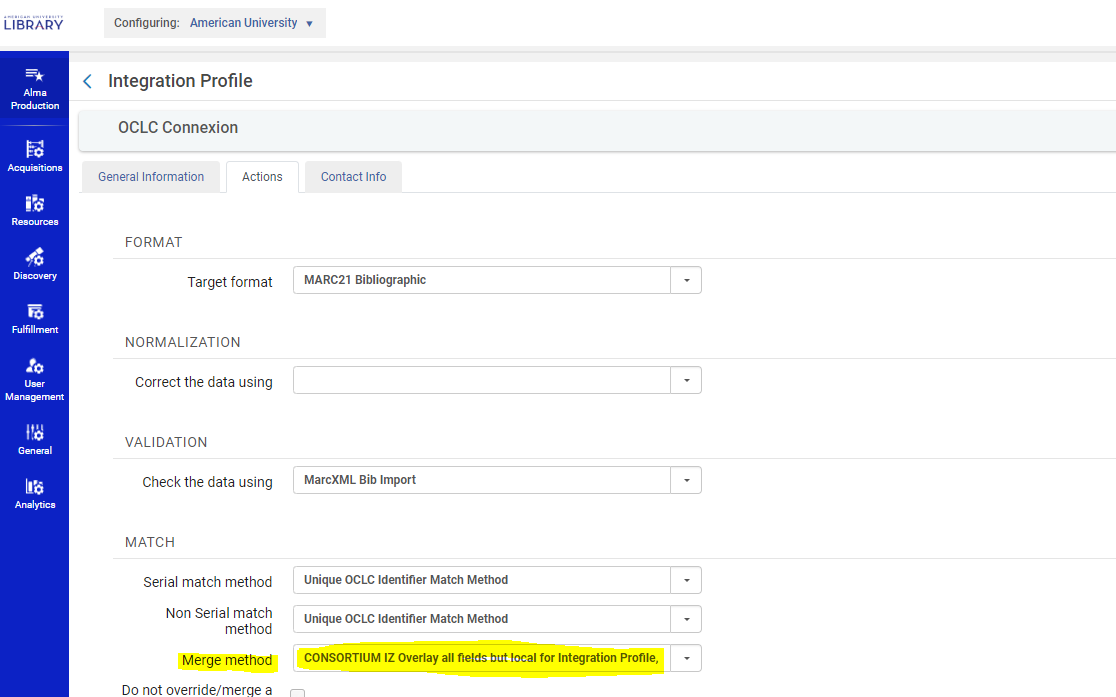](https://alma-documentation-bookstack-stage.azurewebsites.net/uploads/images/gallery/2023-10/merge-rules-6.PNG)
##### 4. When merging two already existing records in the Metadata Editor
Each time you use the Merge Records & Combine Inventory function in the Metadata Editor, you choose which merge rule to use in the pup-up window.
[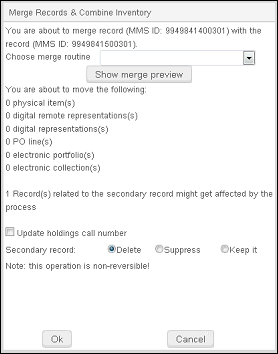](https://alma-documentation-bookstack-stage.azurewebsites.net/uploads/images/gallery/2023-10/merge-rules-4.png)
In this scenario, you will want to use the *CONSORTIUM NZ / IZ Overlay all fields but local* merge rule when the primary record is on the left-hand side of the Metadata Editor split screen (the one that is opened first). For more information about primary and secondary records as they pertain to merging, please see the Knowledge Center page on [Primary Records](https://knowledge.exlibrisgroup.com/Alma/Product_Documentation/010Alma_Online_Help_(English)/Metadata_Management/016Working_with_Rules/030Working_with_Merge_Rules#Primary_Records).
Full instructions on how to merge two records can be found in the [How to merge bibliographic records](https://alma.wrlc.org/books/resources-metadata/page/how-to-merge-bibliographic-records) page of the WRLC Wiki.
Keep in mind that you can merge two bibliographic records only when both records are Institution Zone records, or both are Network Zone records. You CANNOT merge an Institution Zone bib record with a Network Zone bib record
#### When are merge rules NOT used in Alma?
##### 1. When importing records from OCLC Connexion to the Network Zone
Alma uses an Integration Profile (to be found under **Configuration Menu > General > External Systems > Integration Profiles**) to import records from OCLC to Alma. If the Integration profile is configured to use the Network Zone (see image below)...
[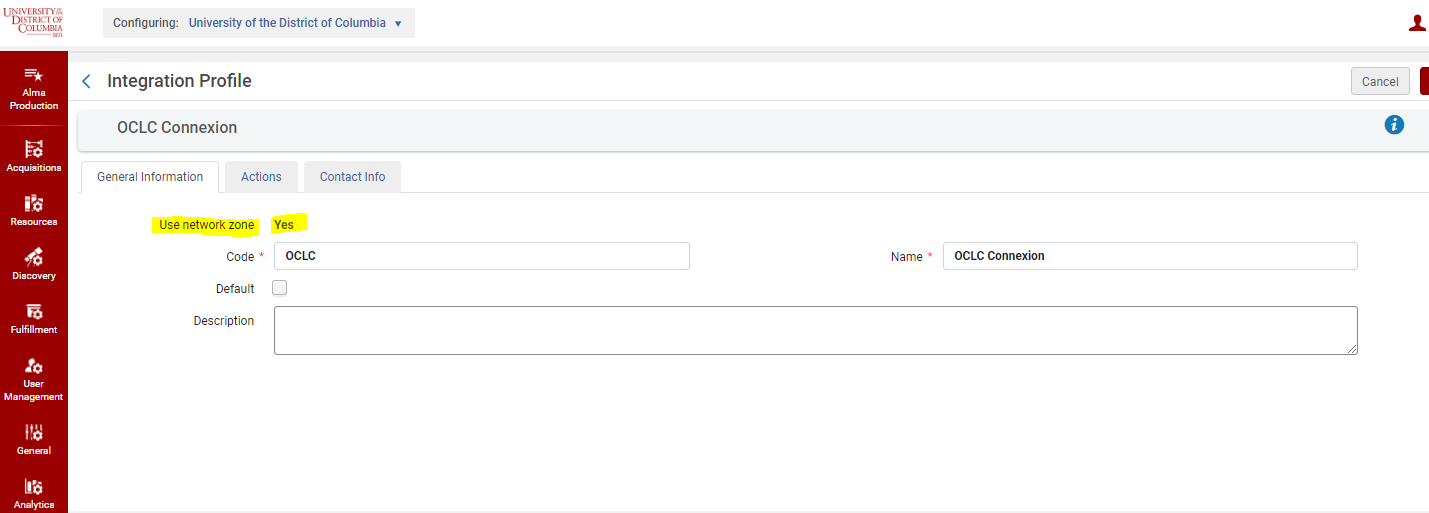](https://alma-documentation-bookstack-stage.azurewebsites.net/uploads/images/gallery/2023-10/merge-rules-7.PNG)
...then the Integration Profile IGNORES the merge method chosen under the Actions tab of the Integration Profile.
If a match with a Network Zone record is found, that Network Zone record is used, and the record will NOT merge with the OCLC record.
##### 2. When linking an IZ record to a matching NZ record
You can share an Institution-Zone record with the Network Zone in the Metadata Editor by choosing **File > Share with Network**. If Alma finds a match between the IZ record and an NZ record, you can preview the match or select from among multiple matches. Select Link beneath the matching record to link the Institution Zone record with the Network Zone record.
[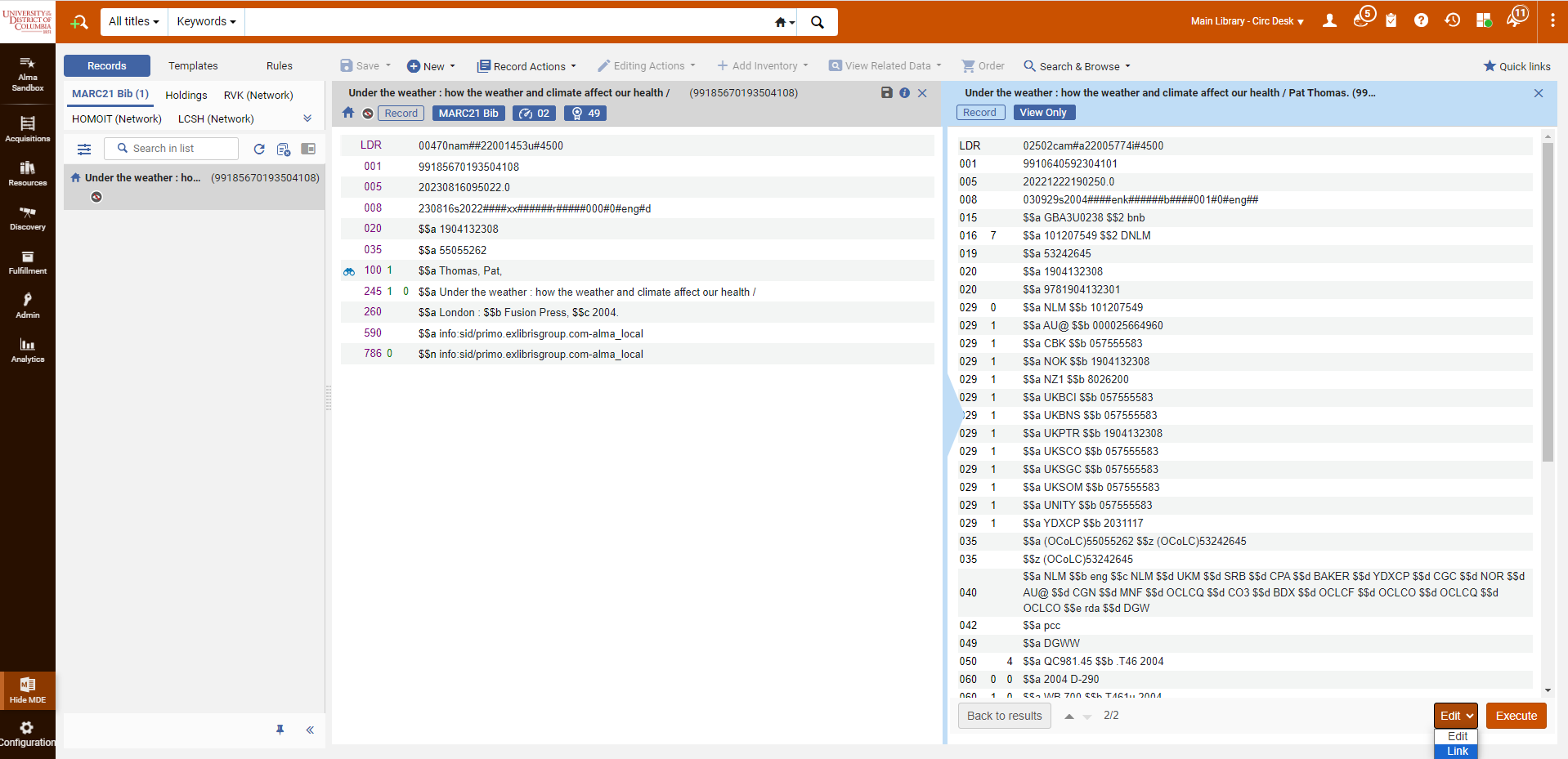](https://alma-documentation-bookstack-stage.azurewebsites.net/uploads/images/gallery/2023-10/merge-rules-8.png)
When an IZ record is linked with an NZ record, the NZ record metadata overlays the IZ record metadata; no merging occurs. The only metadata in the IZ record that merge into the NZ record are [local extensions](https://knowledge.exlibrisgroup.com/Alma/Product_Documentation/010Alma_Online_Help_(English)/100Managing_Multiple_Institutions_Using_a_Network_Zone/03_Managing_Records_in_Consortia/010Network-Managed_Records_in_a_Network_Zone#Adding_Local_Extensions_Using_the_MD_Editor).
#### Extra Resources
[Ex Libris Alma Knowledge Center - Working with Merge Rules](https://knowledge.exlibrisgroup.com/Alma/Product_Documentation/010Alma_Online_Help_(English)/Metadata_Management/016Working_with_Rules/030Working_with_Merge_Rules)
# Match Profile in the Metadata Editor
Match methods in Alma are primarily used in [import profiles](https://knowledge.exlibrisgroup.com/Alma/Product_Documentation/010Alma_Online_Help_(English)/040Resource_Management/060Record_Import/020Managing_Import_Profiles#Creating.2FEditing_an_Import_Profile:_Match_Profile) to determine whether an incoming record is considered a duplicate of an existing record.
Match methods are also used in the Metadata Editor, specifically when [linking records from the Institution Zone to the Network Zone](https://alma.wrlc.org/books/resources-metadata/page/how-to-link-and-unlink-bibliographic-records-from-the-nz#bkmrk-linking-bibliographi), and when [using Search External Resources](https://knowledge.exlibrisgroup.com/Alma/Product_Documentation/010Alma_Online_Help_(English)/Metadata_Management/035Browse_and_Search/030Searching_Resources). In both workflows, a list of record(s) is given if a match is found for the open record in the Metadata Editor.
#### Match Profile Configuration for the Metadata Editor
The matching records are determined by the match profile configured in Alma. This configuration can be found under the **[Configuration Menu > Resources > General > Other Settings](https://knowledge.exlibrisgroup.com/Alma/Product_Documentation/010Alma_Online_Help_(English)/040Resource_Management/080Configuring_Resource_Management/060Configuring_Other_Settings)** page.
**It is [WRLC policy](https://www-libraries-wrlc-org.proxywcl.wrlc.org/content/metadata-committee-meeting-minutes-53119) to use the Fuzzy Match Method for both serials and non serials.**
You must choose the same match profile for both the Network Zone and the Institution Zone. The *Share with Network* functionality may fail if the configuration settings differ between the Network Zone and the Institution Zone.
##### Non Serial Match Profile
[](https://alma-documentation-bookstack-stage.azurewebsites.net/uploads/images/gallery/2023-10/match-method-1.png)
The parameter value for the non\_serial\_match\_profile setting in the WRLC NZ and IZs should be as follows:
```
com.exlibris.repository.mms.match.CDLMatchingProfile
```
##### Serial Match Profile

The parameter value for the serial\_match\_profile setting in the WRLC NZ and IZs should be as follows:
```
com.exlibris.repository.mms.match.CDLSeMatchingProfile
```
##### Fuzzy Match Algorithm
Both the Fuzzy Non-Serial Match Method and the Fuzzy Serial Match Method use the following algorithm to find a match:
> Alma attempts to find records with, at least, one of the following matching IDs:
- ISSN
> - ISBN
> - LCCN
> - CODEN
> - OCLC unique number
> - Other system number (035 field)
>
> If no matches are found through this attempt:
- If the incoming record has authors, Alma attempts to find records that have at least one matching combination of title + author.
> - If the incoming record does not have authors, Alma attempts to find records that have at least one matching title.
>
> The following title and author fields are used for matching: - MARC 21 Title: 245 a; 210 a; 246 a
> - MARC 21 Author: 100 a-d,jq,u; 110 a-e,n,u; 111 a,c-e,n,q,u; 700 a-d,jq,u; 710 a-e,I,n,u; 711 a,c-e,I,j,n,q,u
> - UNIMARC Title: 200 a,e,d,h,i; 531 a
> - UNIMARC Author: 700 a-d,f,p; 701 a-d,f,p; 710 a-h,p; 711 a-h,p; 720 a,f; 721 a,f; 702 a-d,f,g; 712 a-h,p; 722 a,f
>
>
Examples:
>
When the 100/245 match and the 210 exists in the Alma record but is lacking in the incoming record, will there be a match? Yes. Once the records are matched by the 100/245, that is enough. There is no need to check the 210.
>
When the 100/245 match and the 246 exists in the Alma record but is lacking in the incoming record, will there be a match? Yes. Once the records are matched by the 100/245, that is enough. There is no need to check the 246.
>
When the 100/245 match and the 246 exists in the Alma record has one or more 700 fields but the incoming record is lacking all or some of the 700 fields, will there be a match? Yes. Once the records are matched by the 100/245, that is enough. There is no need to check the 700 field(s).
>
If no matches are found in either attempt, Alma issues a message that no matches have been found.
# Item Description Templates
Alma allows for a template to be configured when generating an item description based on the enumeration/chronology fields in an item record.
WRLC has 32 different item description templates configured in our Network Zone and pushed to all Institution Zones.
These templates are only applied to item records with one of the following material types :
| **Code** | **Description** |
| BOOK | Book |
| ISSUE | Issue |
| ISSBD | Bound Issue |
For a full list and description of these templates, please see the [Templates configured in the WRLC NZ](https://alma.wrlc.org/books/resources-metadata/page/item-record-description-policies-and-templates#bkmrk-templates-configured) section of the [Item Record Description Policies and Templates](https://alma.wrlc.org/books/resources-metadata/page/item-record-description-policies-and-templates) page.
To view the NZ template configurations in your own IZ, go to ***Configuration > Resources > General > Description Templates***; they will be listed under the ***Network Rules list*** section.
[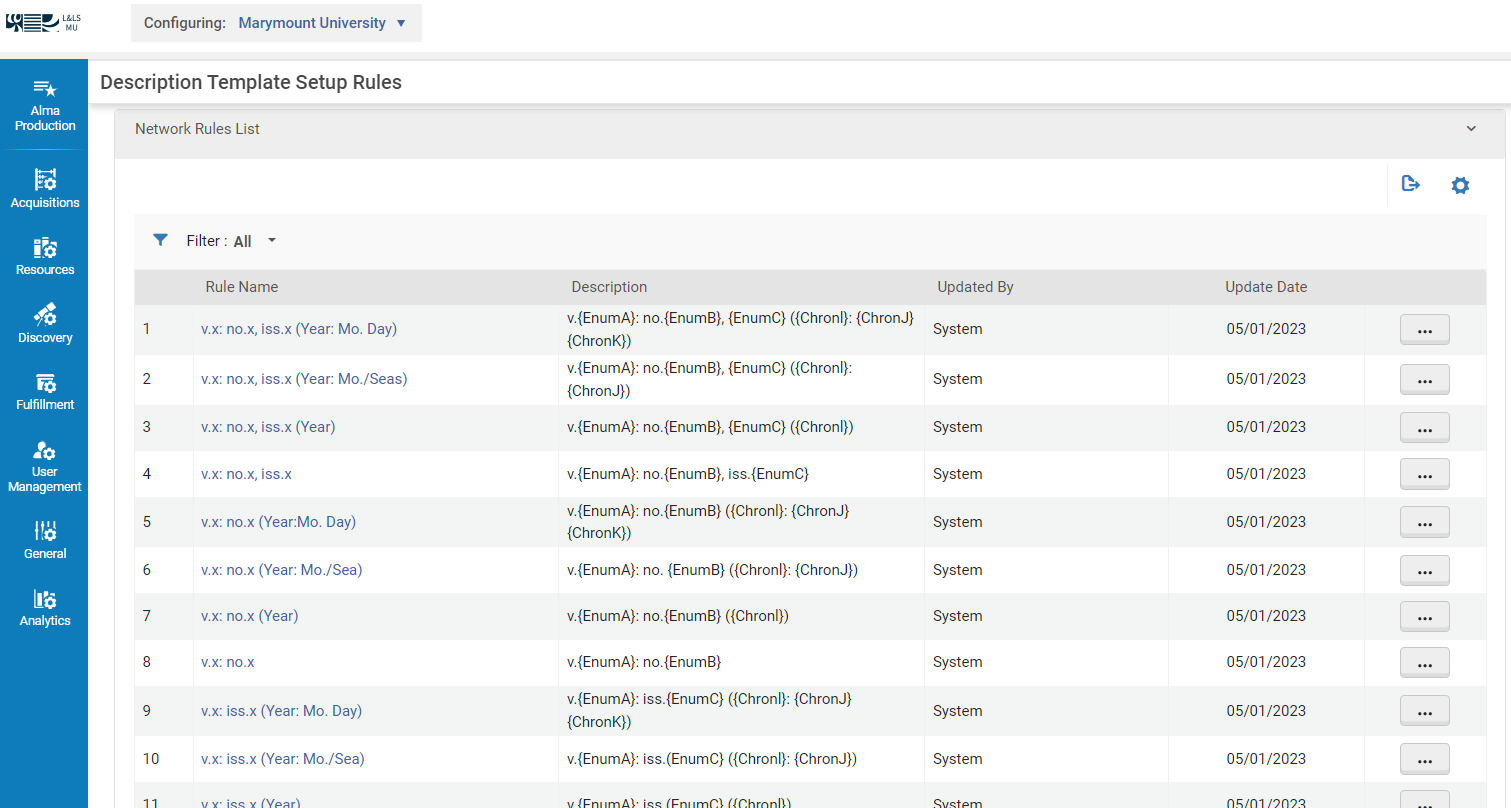](https://alma-documentation-bookstack-stage.azurewebsites.net/uploads/images/gallery/2023-12/desc-template-config2.PNG)
The NZ templates are configured so that they have precedence over any templates configured in the individual Institution Zone. This means that NZ description templates are applied to item records first, and then IZ-only description templates are applied.
[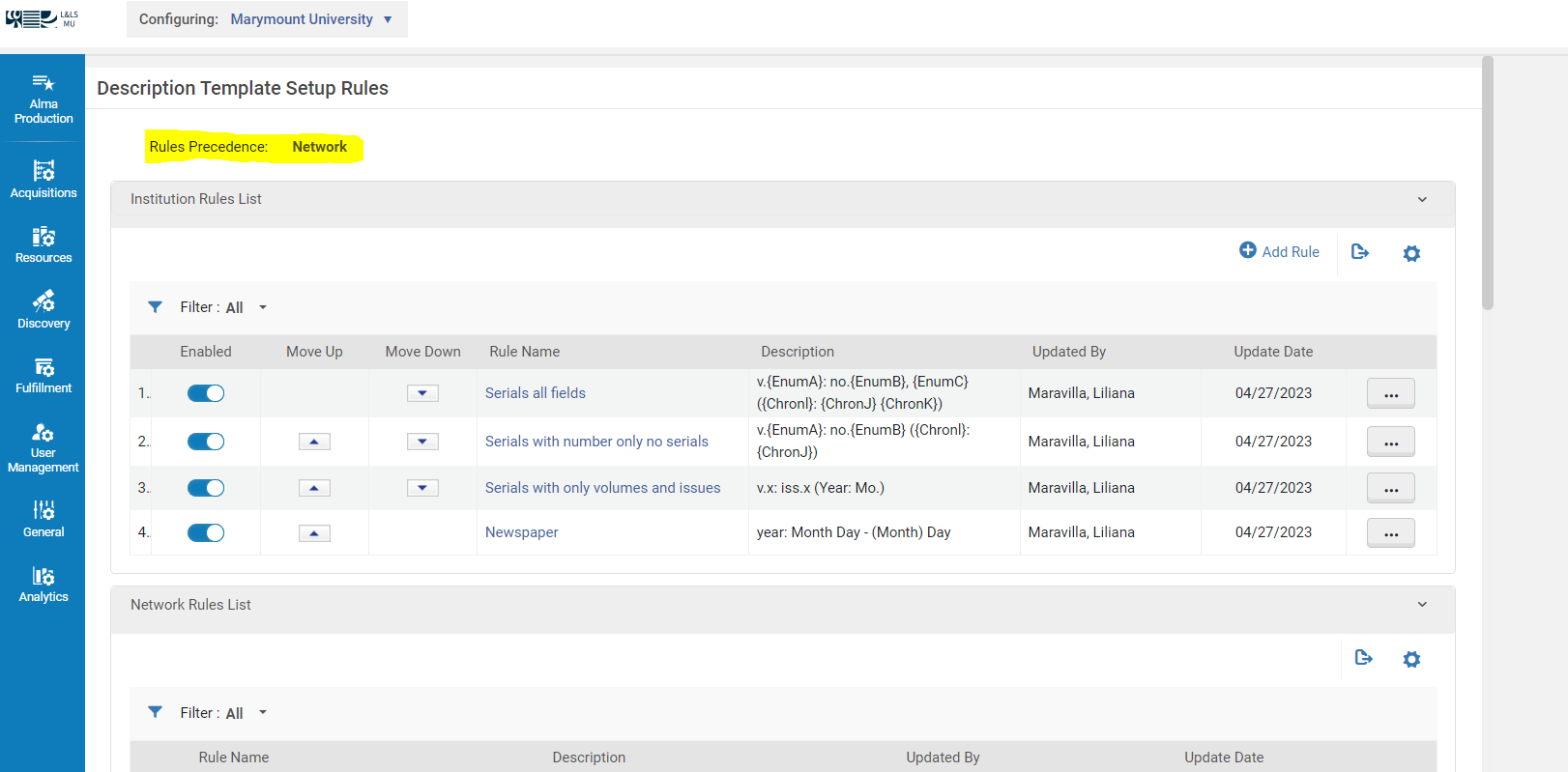](https://alma-documentation-bookstack-stage.azurewebsites.net/uploads/images/gallery/2023-12/desc-template-config3.PNG)
This setting is configured in ***Configuration > Resources > General > Other Settings***. The parameter ***network\_description\_templates\_rules\_precedence*** should be set to ***true*** in all WRLC Institution Zones.
[](https://alma-documentation-bookstack-stage.azurewebsites.net/uploads/images/gallery/2023-12/desc-template-config1.PNG)
# Bibliographic Record Deletion - Related Records
Alma allows the ability to prevent the deletion of related records in the Network Zone. In the [*Bibliographic Record Deletion - Related Records*](https://knowledge.exlibrisgroup.com/Alma/Product_Documentation/010Alma_Online_Help_(English)/Metadata_Management/040Working_with_Bibliographic_Records/Restrict_Deletion_of_Network_Zone_Bibliographic_Records_with_Related_Records_and%2F%2For_Local_Extensions#Configuring_Bibliographic_Record_Deletion_with_Related_Records) page of Alma Configuration (which can be found under **Configuration > Resources > Collection Retention**), you can specify which types of related records will result in a warning or a block if staff try to delete them.
In the WRLC Network Zone, only the following relation types are enabled as a Block; this means that any records with a ***Contains*** (774 field) relationship or a ***Part Of*** (773 field) relationship with another record will NOT be deleted by Alma. For more information, see the [Related Record Types](https://knowledge.exlibrisgroup.com/Alma/Product_Documentation/010Alma_Online_Help_(English)/Electronic_Resource_Management/051Link_Resolver/030Access_to_Services#Link_Resolver_-_Services_for_Related_Records) section in the Alma Knowledge Base.
[](https://alma-documentation-bookstack-stage.azurewebsites.net/uploads/images/gallery/2024-06/wiki-bib-record-deletion-1.PNG)
[](https://alma-documentation-bookstack-stage.azurewebsites.net/uploads/images/gallery/2024-06/wiki-bib-record-deletion-2.PNG)
This prevents the accidental deletion of boundwith records in the catalog that use the 773 or 774 fields for linking. For more information on creating boundwiths in Alma, see the [Configuring Related Records for Physical Inventory](https://knowledge.exlibrisgroup.com/Alma/Product_Documentation/010Alma_Online_Help_(English)/Physical_Resource_Management/070_Configuring_Resource_Management/009Configuring_Related_Records_for_Physical_Inventory) in the Alma Knowledge Base.
For more information about deleting NZ bibliographic records, please see the [WRLC policy](https://alma.wrlc.org/books/resources-metadata/page/wrlc-network-zone-bibliographic-record-policies#bkmrk-descriptive-catalogi).