# How to create new bibliographic records in the Metadata Editor
1\. Open the Metadata Editor.
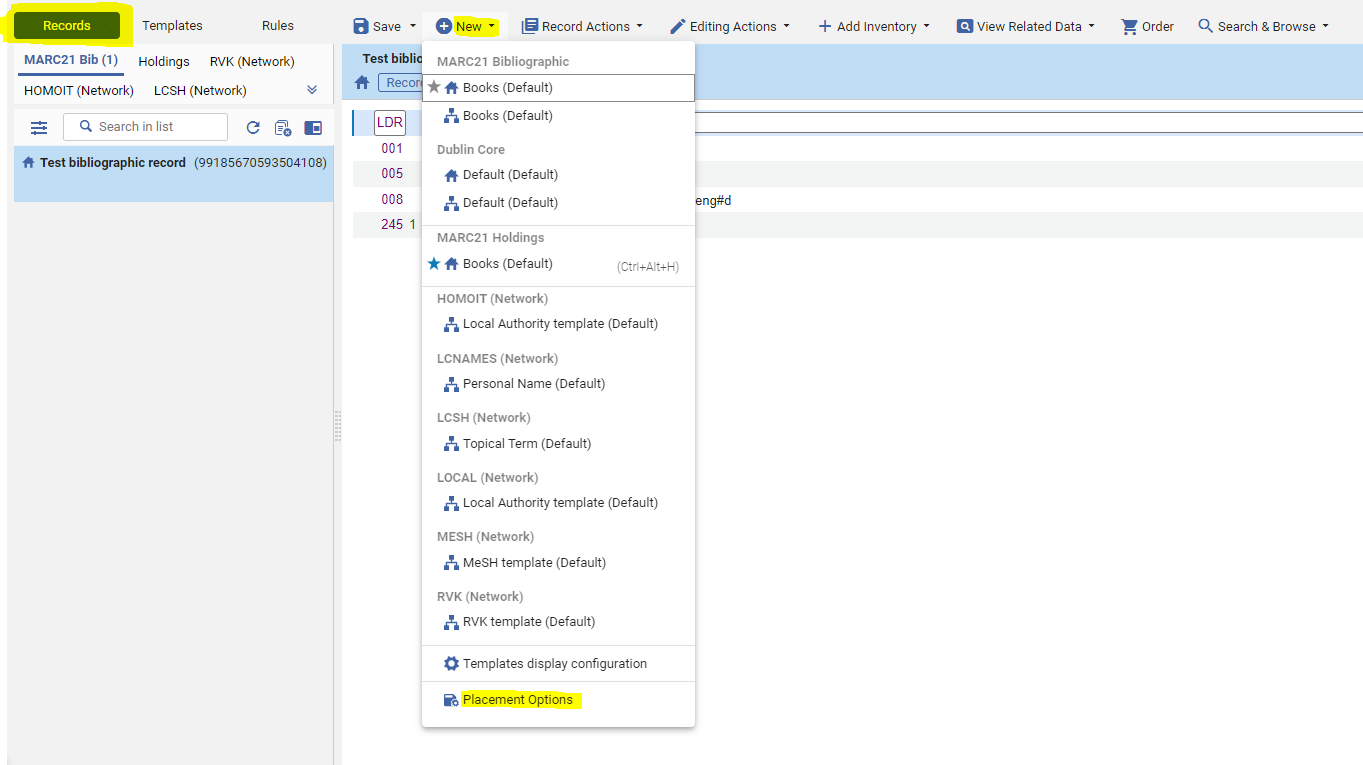
2\. Choose *Records* on the top left-hand corner, then choose *New > Placement Options.*
[](https://alma-documentation-bookstack-stage.azurewebsites.net/uploads/images/gallery/2023-11/newbib1.PNG)
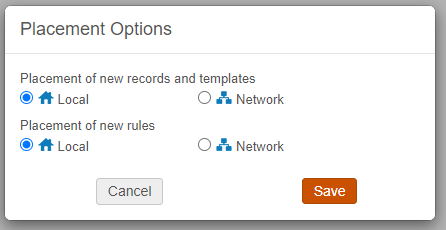
3\. Choose the location of new records (whether IZ-only or liked to the NZ). Then click Save; this setting will be saved until you change the setting again.
[](https://alma-documentation-bookstack-stage.azurewebsites.net/uploads/images/gallery/2023-11/newbib2.PNG)
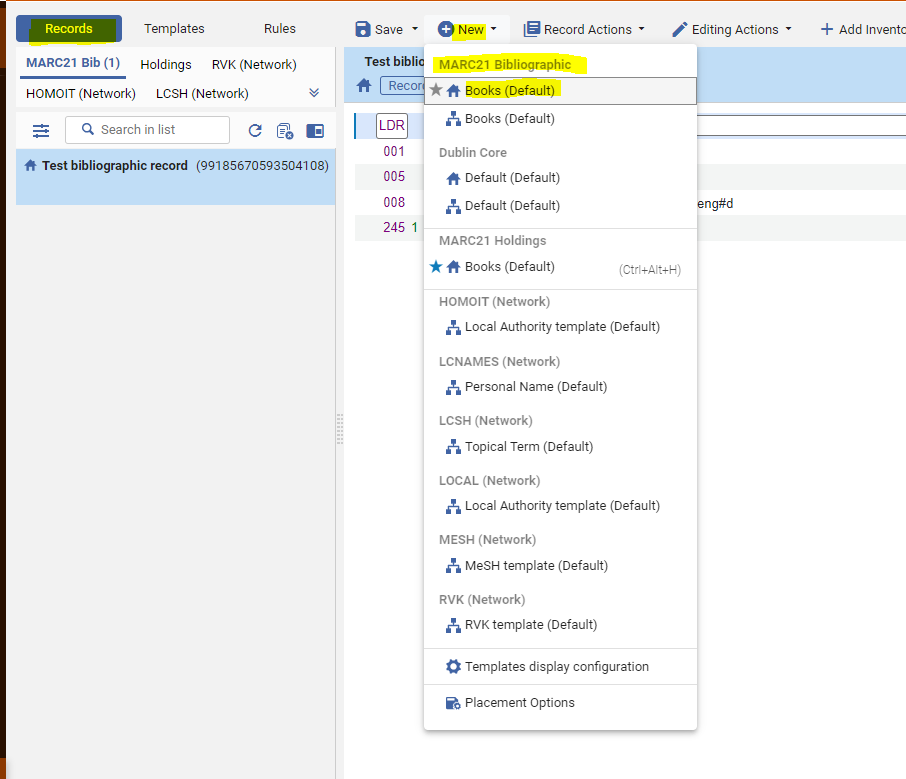
4\. Choose New > MARC21 Bibliographic > Books (Default)
[](https://alma-documentation-bookstack-stage.azurewebsites.net/uploads/images/gallery/2023-11/newbib3.PNG)
Please note that the IZ and NZ icons next to the Books (Default) templates does NOT signify the location of the new record; the icon only signifies which template you are using - either the book template saved in the IZ, or the book template saved in the NZ.
The MARC21 Bib Book template in the NZ (the one with the NZ icon) is the out-of-the-box template from Alma. If you would like to see more about creating record templates in Alma, see the [Working with Record Templates](https://knowledge.exlibrisgroup.com/Alma/Product_Documentation/010Alma_Online_Help_(English)/Metadata_Management/014Navigating_the_Metadata_Editor_Page/030Working_with_Record_Templates) page.
5\. Edit the new record, then click *Save*.