# WRLC Storage Reshelving Procedures for BOOKS 2025
### WRLC Storage Reshelving Procedures for BOOKS 2025
#### 1. Scanning Procedures
Aim scanner and press the trigger to scan each barcode
- - - - Scan the tray location barcode on the tray then the item barcode on the book.
- If more than one book need to go in the same tray, the tray location barcode will need to be scanned again.
#### 2. Retrieving Items from Scanner
- Plug the Opticon Scanner to the computer
- Click on OPN Companion Application
- Click on “get barcodes”
- A txt file titled “Barcodes” will automatically appear on desktop listing the barcodes that were just scanned
- Click on “delete barcodes” then “yes” to proceed \*THIS IS VERY IMPORTANT!
- Click on “close” then close the window
- Open the “Barcodes” file and remove extra space at the end (be sure the cursor is at the end of the last barcode)
- Save the file as text to:
C:\\Users\\your last name\\WRLC\\WRLC COMMON - Documents\\1\_Storage Refiles\\Alma\\Books\\Row x & x
File name is the date that list was created
Ex. notepad\_7\_12\_16
- Delete the “Barcodes” file **\*THIS IS VERY IMPORTANT!**
#### 3. Uploading reshelved items
Use the SCF Processing website to upload reshelved books. If you needed to leave your desk briefly, it will be a good idea to refresh the page when you comes back before starting work to ensure everything is ready to proceed.
When items have been uploaded it means:
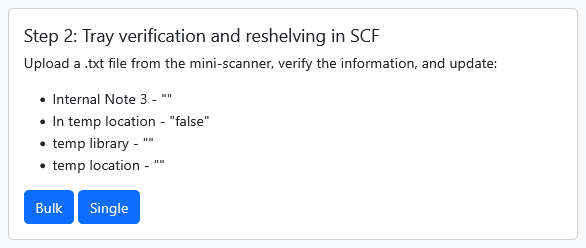
- The message, "SCF Hold Shelf" in Internal Note 3 has been cleared
- The Item is in temporary location has been switched to "No"
- The temporary library of "WRLC - Shared Collections Facility" has been removed
- The temporary location of "SCF Hold Shelf" has been removed
On the main menu of the SCF Processing website, go to "Refile Processing" then click on "Home".
Do Step 2 to perform upload of the reshelved items. Click on "Bulk".
[](https://alma-documentation-bookstack-stage.azurewebsites.net/uploads/images/gallery/2025-03/riyimage.png)
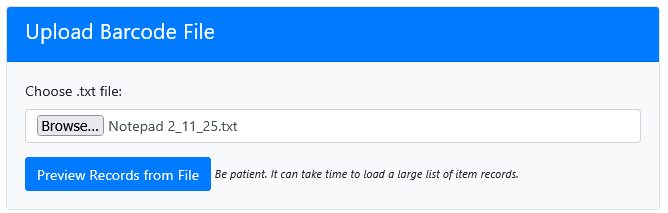
Select the file that was just created after uploading the items from the portable scanner.
Click on "Preview Records from File"
[](https://alma-documentation-bookstack-stage.azurewebsites.net/uploads/images/gallery/2025-03/oXHimage.png)
[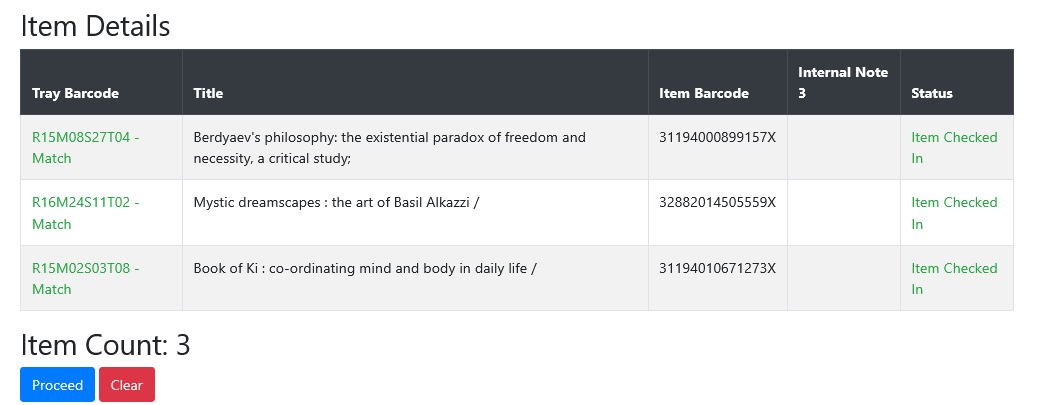](https://alma-documentation-bookstack-stage.azurewebsites.net/uploads/images/gallery/2025-03/WXAimage.png)
**PLEASE VERIFY THE ITEM COUNT...MAKE SURE THE NUMBER IS THE SAME AS TO THE WORD DOCUMENT THAT WAS CREATED WHEN DOING THE PRE-RESHELVING PROCEDURE**
Click on "Proceed" to have multiple fields in Alma updated
When you see "Updated Item Details" and "Updated", it means that the item records have been updated.
[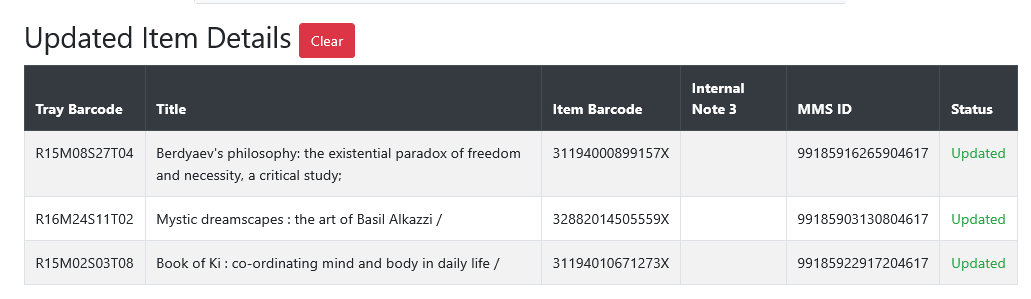](https://alma-documentation-bookstack-stage.azurewebsites.net/uploads/images/gallery/2025-03/image.png)
All done!
**ISSUES:**
**1) Incorrect item barcode scanned. For example, Catholic books have both old and current barcodes:**
OLD (barcode is shortened): 3053001646981
CURRENT: 30530003349875
If the old barcode was scanned and uploaded, this message will appear:
[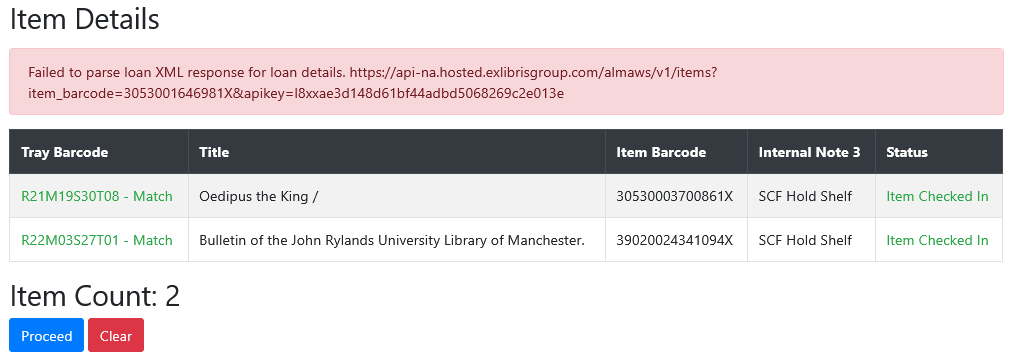](https://alma-documentation-bookstack-stage.azurewebsites.net/uploads/images/gallery/2025-03/zPwimage.png)
Steps to fix this:
- Click on "Proceed" so the remaining items could be updated.
- You will need to go back to the tray and get the book then give it to the supervisor.
- Make a note on the Word document
**2) Item placed in the wrong tray or wrong tray location was scanned:**
31194010728958 was placed in R21M19S30T08 when it should have been placed in R22M18S09T12.
[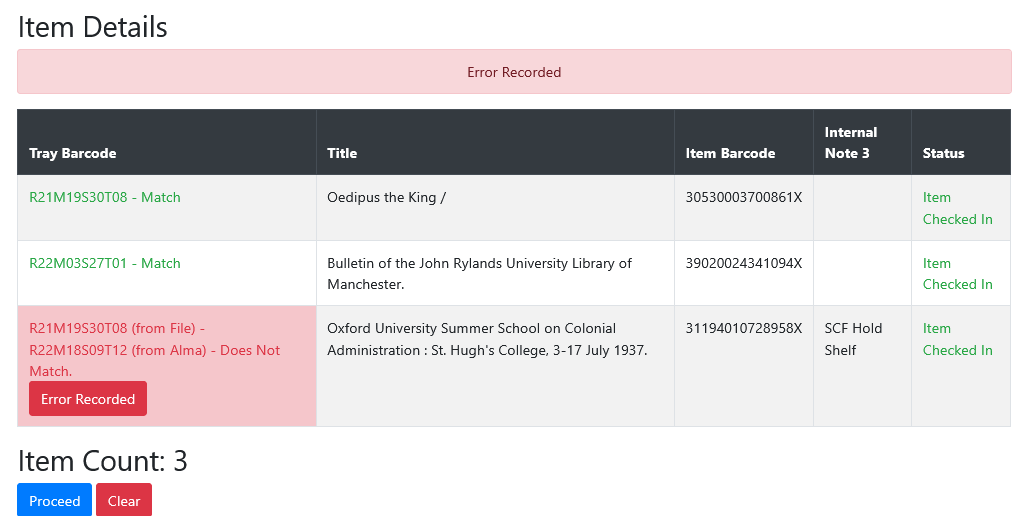](https://alma-documentation-bookstack-stage.azurewebsites.net/uploads/images/gallery/2025-03/nPIimage.png)
Steps to fix this:
- Click on "Proceed" so the remaining items could be updated.
- You will need to go back to the tray and get the book.
- Retrieve the slip that was in the book and put it back in the book then give it to the supervisor.
- Make a note on the Word document.
**3) Internal note 1 is blank:**
Tray location is missing from Internal Note 1 field.
[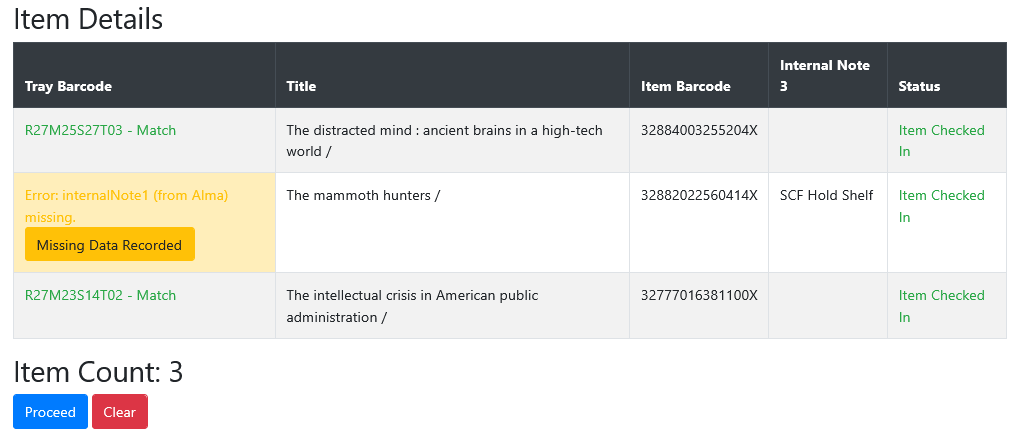](https://alma-documentation-bookstack-stage.azurewebsites.net/uploads/images/gallery/2025-05/image.png)
Steps to fix this:
- Click on "Proceed" so the remaining items could be updated.
- Send an email to the supervisor with item barcode.
- Make a note on the Word document.
**4) Item is checked out:**
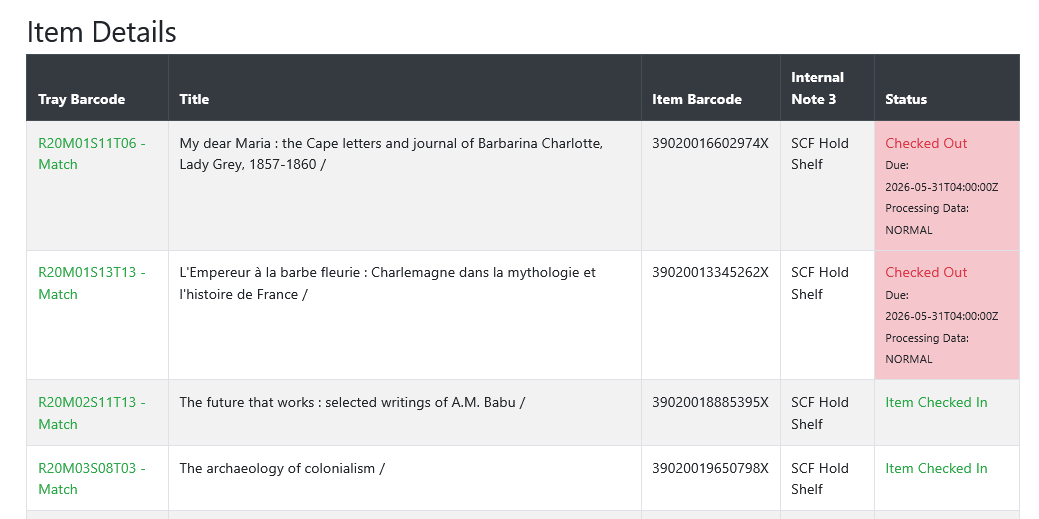
When you see a pink box with the message saying, "Checked Out", send an email to the supervisor with item barcode.