# Affiliate Library Configuration

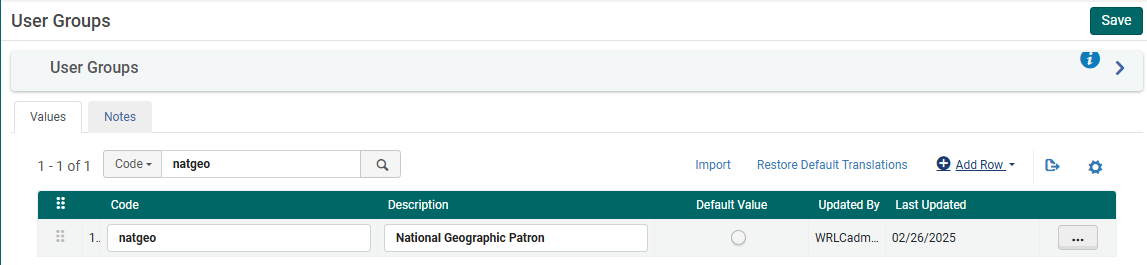
##### 1. Create user group

- Configuration &gt; User Management &gt; User Details &gt; User Groups
- + Add Row
- Choose a code and a description (preferably \[*Affiliate Library\] Patron*)
- Choose ***Add Row***, and then ***Save*** the table

[![aff_lib_config1.PNG](https://alma-documentation-bookstack-stage.azurewebsites.net/uploads/images/gallery/2025-02/scaled-1680-/aff-lib-config1.PNG)](https://alma-documentation-bookstack-stage.azurewebsites.net/uploads/images/gallery/2025-02/aff-lib-config1.PNG)
##### 2. Apply user record group to a specific type

- Configuration &gt; User Management &gt; User Details &gt; User Record Type/User Group
- + Add Row
- Choose the user group created in step #1, then choose a record type of ***Staff***, ***Public***, and ***Organization***
- Choose ***Add Row***, and then ***Save*** the table

[![aff_lib_config2.PNG](https://alma-documentation-bookstack-stage.azurewebsites.net/uploads/images/gallery/2025-02/scaled-1680-/aff-lib-config2.PNG)](https://alma-documentation-bookstack-stage.azurewebsites.net/uploads/images/gallery/2025-02/aff-lib-config2.PNG)

##### 3. Associate library location with Fulfillment Unit

- Configuration &gt; Fulfillment &gt; Physical Fulfillment &gt; Fulfillment Units
- ***Edit*** the Fulfillment Unit ***Library Delivery Only***
- Choose the ***Fulfillment Unit Locations*** tab
- Attach to the list the location(s) associated with the affiliate library
- ***Save*** the Fulfillment Unit

##### 4. Associate user group with Fulfillment Unit

- Configuration &gt; Fulfillment &gt; Physical Fulfillment &gt; Fulfillment Units
- ***Edit*** the Fulfillment Unit ***Library Delivery Only***
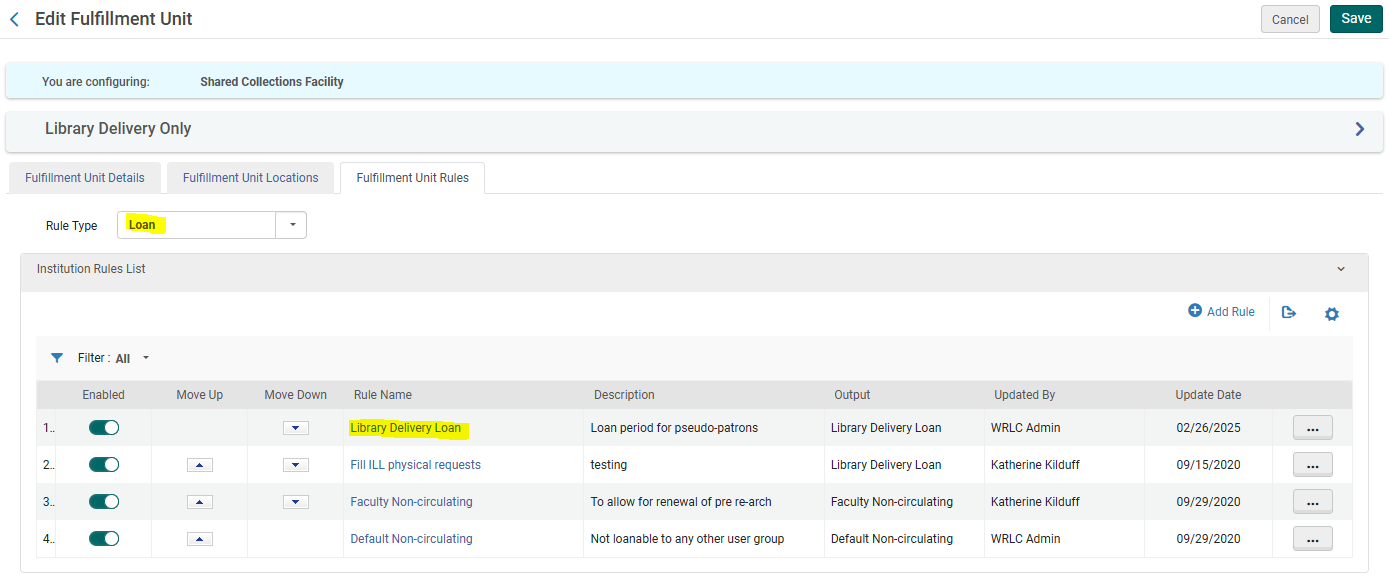
- Choose the ***Fulfillment Unit Rules*** tab
- Choose the Rule Type ***Loan*** from the drop down menu
- Edit the ***Library Delivery Loan*** rule

[![aff_lib_config3.PNG](https://alma-documentation-bookstack-stage.azurewebsites.net/uploads/images/gallery/2025-02/scaled-1680-/aff-lib-config3.PNG)](https://alma-documentation-bookstack-stage.azurewebsites.net/uploads/images/gallery/2025-02/aff-lib-config3.PNG)
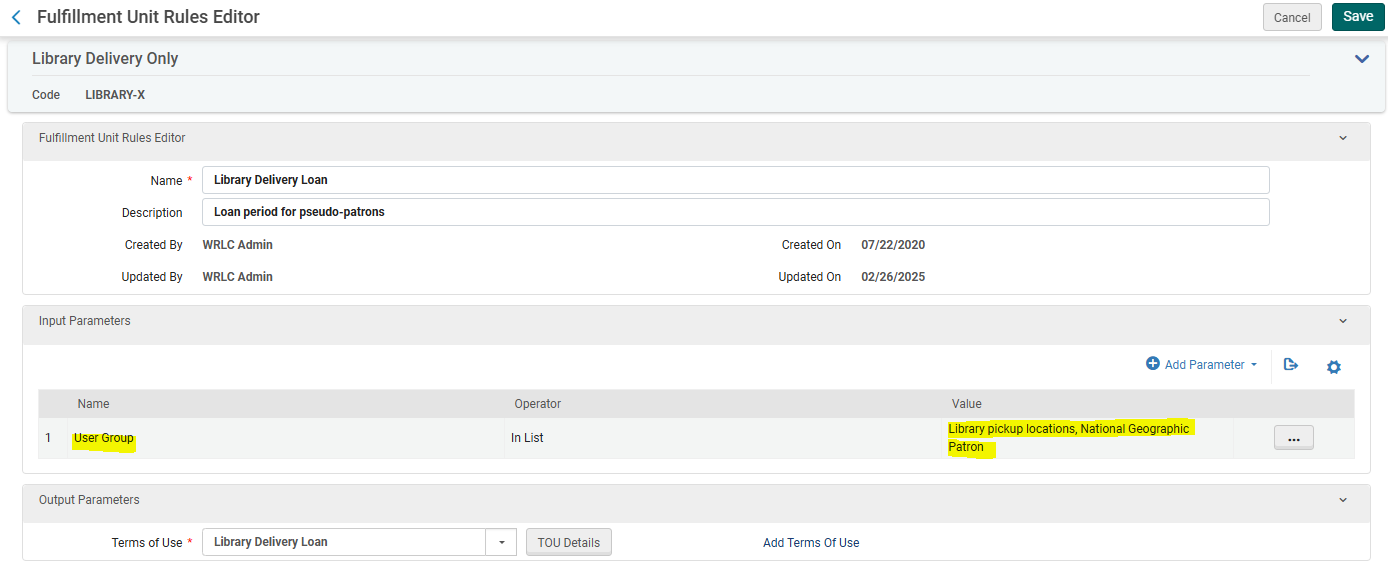
- Add the user group created in step #1 to the list of User Groups in the Input Parameters
- ***Save*** the Fulfillment Unit

[![aff_lib_config4.PNG](https://alma-documentation-bookstack-stage.azurewebsites.net/uploads/images/gallery/2025-02/scaled-1680-/aff-lib-config4.PNG)](https://alma-documentation-bookstack-stage.azurewebsites.net/uploads/images/gallery/2025-02/aff-lib-config4.PNG)
- Go back to the ***Fulfillment Unit Rules*** tab
- Now choose the Rule Type ***Request*** from the drop down menu
- Edit the ***Library Delivery Request*** rule

[![aff_lib_config5.PNG](https://alma-documentation-bookstack-stage.azurewebsites.net/uploads/images/gallery/2025-02/scaled-1680-/aff-lib-config5.PNG)](https://alma-documentation-bookstack-stage.azurewebsites.net/uploads/images/gallery/2025-02/aff-lib-config5.PNG)
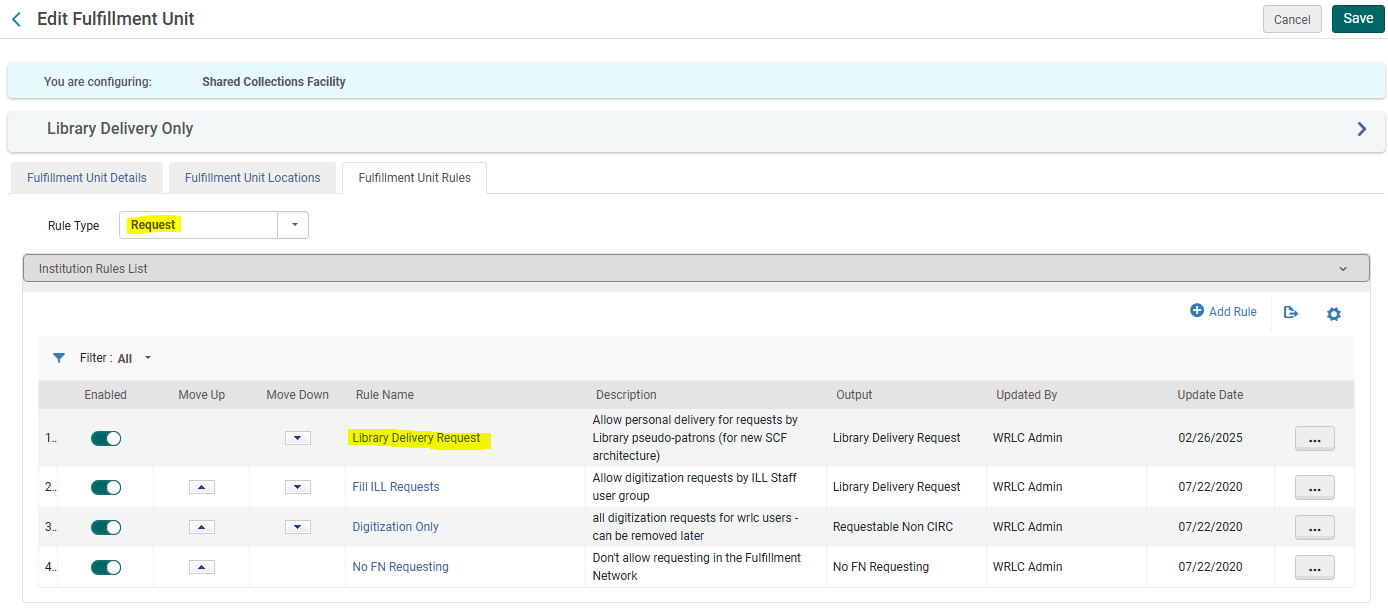
- Add the user group created in step #1 to the list of User Groups in the Input Parameters
- ***Save*** the Fulfillment Unit

##### 5. Create a restricted search group for Primo VE

- Configuration &gt; Discovery &gt; Search Configuration &gt; Restricted Search Groups
- + Add Restricted Search Group
- Choose a code, a name (preferably \[*Affiliate Library Name\] Affiliate Library*), and a description

[![aff_lib_config6.PNG](https://alma-documentation-bookstack-stage.azurewebsites.net/uploads/images/gallery/2025-02/scaled-1680-/aff-lib-config6.PNG)](https://alma-documentation-bookstack-stage.azurewebsites.net/uploads/images/gallery/2025-02/aff-lib-config6.PNG)

- Add the ***Restricted Search Condition*** of: 
    - Search Index = Location
    - Operator = Equals
    - Value = all library locations associated with affiliate library

[![aff_lib_config7.PNG](https://alma-documentation-bookstack-stage.azurewebsites.net/uploads/images/gallery/2025-02/scaled-1680-/aff-lib-config7.PNG)](https://alma-documentation-bookstack-stage.azurewebsites.net/uploads/images/gallery/2025-02/aff-lib-config7.PNG)

- Add the following ***Allowed Users***: 
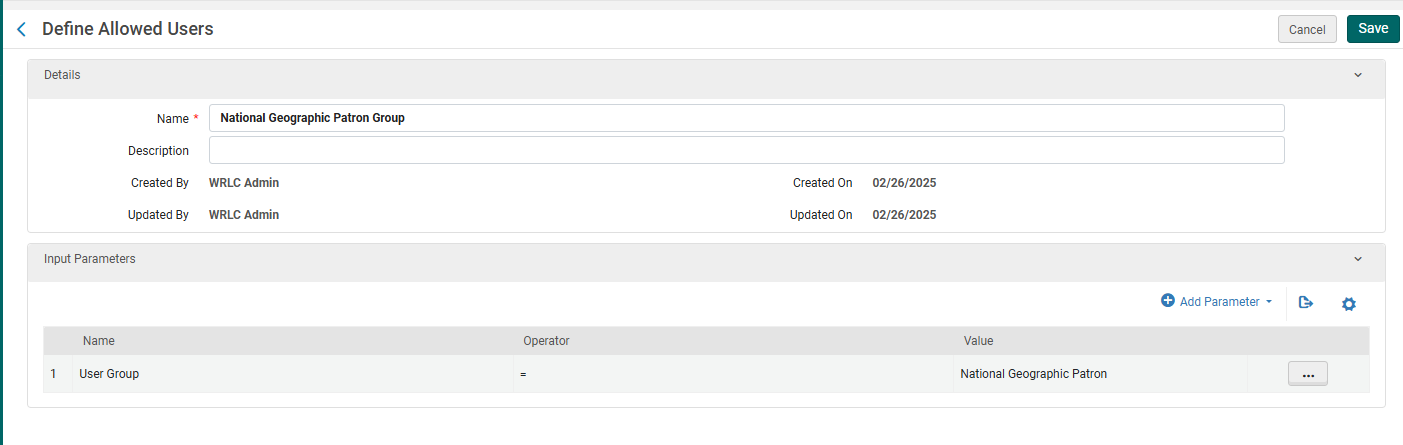
    - Patron Group Rule 
        - Name = \[Affiliate Library\] Patron Group
        - Input Parameter 
            - Name = User Group
            - Operator = "="
            - Value = all user groups created in step #1

[![aff_lib_config8.PNG](https://alma-documentation-bookstack-stage.azurewebsites.net/uploads/images/gallery/2025-02/scaled-1680-/aff-lib-config8.PNG)](https://alma-documentation-bookstack-stage.azurewebsites.net/uploads/images/gallery/2025-02/aff-lib-config8.PNG)
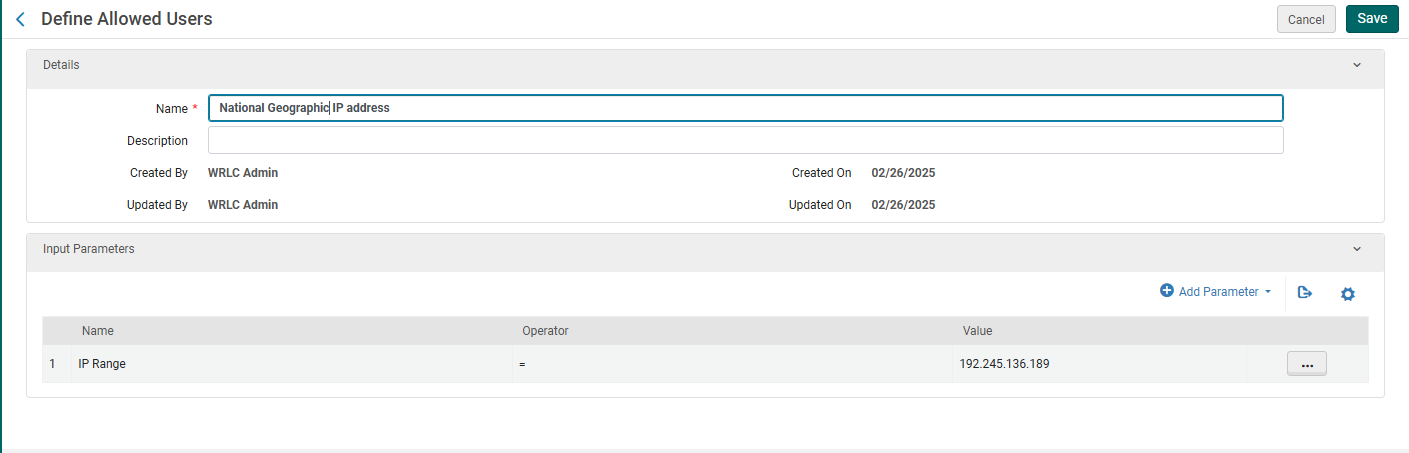
- - IP Address Rule 
        - Name = \[Affiliate Library\] IP Address
        - Input Parameter 
            - Name = IP Range
            - Operator = "="
            - Value = \[IP range of affiliate library\]
- ***Save*** the Restricted Search Group Definition

[![aff_lib_config9.PNG](https://alma-documentation-bookstack-stage.azurewebsites.net/uploads/images/gallery/2025-02/scaled-1680-/aff-lib-config9.PNG)](https://alma-documentation-bookstack-stage.azurewebsites.net/uploads/images/gallery/2025-02/aff-lib-config9.PNG)
#####  

##### 6. Create a custom local data search scope

- Configuration &gt; Discovery &gt; Search Configuration &gt; Search Profiles
- Choose the ***Custom Local Data Scopes*** tab
- + Add a Custom Scope
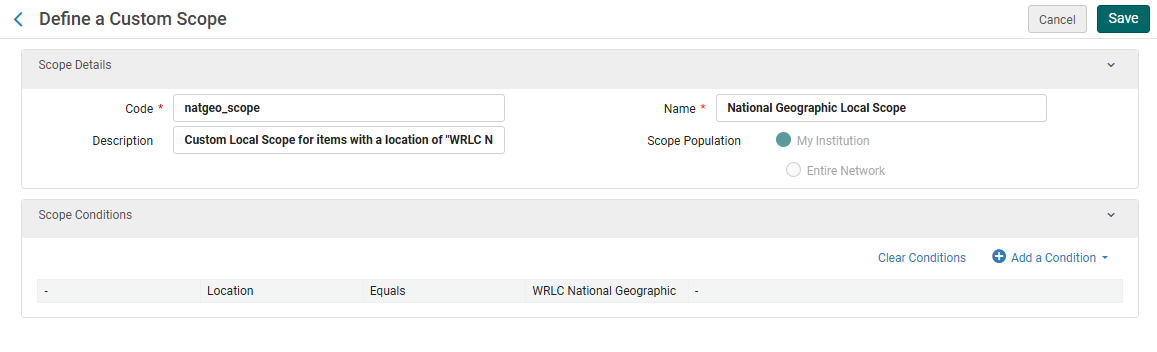
- Choose a code and a name
- Then add the following Scope Condition: 
    - Search Index = Inventory &gt; Location
    - Operator = Equals
    - Value = Location(s) associated with affiliate library
- ***Add Condition***, then ***Save*** the Custom Scope

[![aff_lib_config10.PNG](https://alma-documentation-bookstack-stage.azurewebsites.net/uploads/images/gallery/2025-02/scaled-1680-/aff-lib-config10.PNG)](https://alma-documentation-bookstack-stage.azurewebsites.net/uploads/images/gallery/2025-02/aff-lib-config10.PNG)
##### 7. Create a search profile

- Configuration &gt; Discovery &gt; Search Configuration &gt; Search Profiles
- Choose the ***Search Profiles*** tab
- + Add a Search Profile
- Choose a code and a display name
- Then add the following scope: 
    - Select Scope Type = Custom (Local Data)
    - Select Custom Scope = the custom scope created in step #6
- Click ***Add and close***, then ***Save*** the Custom Search Profile

#####  

##### 8. Create a Primo VE view for affiliate library users

- <span style="font-family: -apple-system, BlinkMacSystemFont, 'Segoe UI', Oxygen, Ubuntu, Roboto, Cantarell, 'Fira Sans', 'Droid Sans', 'Helvetica Neue', sans-serif; font-size: 14px; font-style: normal; font-variant-ligatures: normal; font-variant-caps: normal; font-weight: 400;">Configuration &gt; Discovery &gt; Display Configuration &gt; Configure Views</span>
- <span style="font-family: -apple-system, BlinkMacSystemFont, 'Segoe UI', Oxygen, Ubuntu, Roboto, Cantarell, 'Fira Sans', 'Droid Sans', 'Helvetica Neue', sans-serif; font-size: 14px; font-style: normal; font-variant-ligatures: normal; font-variant-caps: normal; font-weight: 400;">+ Add View</span>
- <span style="font-family: -apple-system, BlinkMacSystemFont, 'Segoe UI', Oxygen, Ubuntu, Roboto, Cantarell, 'Fira Sans', 'Droid Sans', 'Helvetica Neue', sans-serif; font-size: 14px; font-style: normal; font-variant-ligatures: normal; font-variant-caps: normal; font-weight: 400;">Choose a code and a name</span>
- <span style="font-family: -apple-system, BlinkMacSystemFont, 'Segoe UI', Oxygen, Ubuntu, Roboto, Cantarell, 'Fira Sans', 'Droid Sans', 'Helvetica Neue', sans-serif; font-size: 14px; font-style: normal; font-variant-ligatures: normal; font-variant-caps: normal; font-weight: 400;">Choose the following settings as you work through the configuration pages</span>
    - <span style="font-family: -apple-system, BlinkMacSystemFont, 'Segoe UI', Oxygen, Ubuntu, Roboto, Cantarell, 'Fira Sans', 'Droid Sans', 'Helvetica Neue', sans-serif; font-size: 14px; font-style: normal; font-variant-ligatures: normal; font-variant-caps: normal; font-weight: 400;">***General*** tab &gt; ***Discovery Network Settings*** section</span>
        - <span style="font-family: -apple-system, BlinkMacSystemFont, 'Segoe UI', Oxygen, Ubuntu, Roboto, Cantarell, 'Fira Sans', 'Droid Sans', 'Helvetica Neue', sans-serif; font-size: 14px; font-style: normal; font-variant-ligatures: normal; font-variant-caps: normal; font-weight: 400;">Display locations from member institutions = No</span>
        - <span style="font-family: -apple-system, BlinkMacSystemFont, 'Segoe UI', Oxygen, Ubuntu, Roboto, Cantarell, 'Fira Sans', 'Droid Sans', 'Helvetica Neue', sans-serif; font-size: 14px; font-style: normal; font-variant-ligatures: normal; font-variant-caps: normal; font-weight: 400;">Include member institution physical inventory in facets = Never</span>

<span style="font-family: -apple-system, BlinkMacSystemFont, 'Segoe UI', Oxygen, Ubuntu, Roboto, Cantarell, 'Fira Sans', 'Droid Sans', 'Helvetica Neue', sans-serif; font-size: 14px; font-style: normal; font-variant-ligatures: normal; font-variant-caps: normal; font-weight: 400;">[![aff_lib_config11.PNG](https://alma-documentation-bookstack-stage.azurewebsites.net/uploads/images/gallery/2025-02/scaled-1680-/aff-lib-config11.PNG)](https://alma-documentation-bookstack-stage.azurewebsites.net/uploads/images/gallery/2025-02/aff-lib-config11.PNG)</span>

- <span style="font-family: -apple-system, BlinkMacSystemFont, 'Segoe UI', Oxygen, Ubuntu, Roboto, Cantarell, 'Fira Sans', 'Droid Sans', 'Helvetica Neue', sans-serif; font-size: 14px; font-style: normal; font-variant-ligatures: normal; font-variant-caps: normal; font-weight: 400;">***Links Menu*** tab</span>
    - <span style="font-family: -apple-system, BlinkMacSystemFont, 'Segoe UI', Oxygen, Ubuntu, Roboto, Cantarell, 'Fira Sans', 'Droid Sans', 'Helvetica Neue', sans-serif; font-size: 14px; font-style: normal; font-variant-ligatures: normal; font-variant-caps: normal; font-weight: 400;">Only activate the following links</span>
        - <span style="font-family: -apple-system, BlinkMacSystemFont, 'Segoe UI', Oxygen, Ubuntu, Roboto, Cantarell, 'Fira Sans', 'Droid Sans', 'Helvetica Neue', sans-serif; font-size: 14px; font-style: normal; font-variant-ligatures: normal; font-variant-caps: normal; font-weight: 400;">Library Search</span>
        - <span style="font-family: -apple-system, BlinkMacSystemFont, 'Segoe UI', Oxygen, Ubuntu, Roboto, Cantarell, 'Fira Sans', 'Droid Sans', 'Helvetica Neue', sans-serif; font-size: 14px; font-style: normal; font-variant-ligatures: normal; font-variant-caps: normal; font-weight: 400;">Collections Discovery (if they have collections in the SCF IZ)</span>
        - <span style="font-family: -apple-system, BlinkMacSystemFont, 'Segoe UI', Oxygen, Ubuntu, Roboto, Cantarell, 'Fira Sans', 'Droid Sans', 'Helvetica Neue', sans-serif; font-size: 14px; font-style: normal; font-variant-ligatures: normal; font-variant-caps: normal; font-weight: 400;">URL leading to the affiliate library website</span>
- <span style="font-family: -apple-system, BlinkMacSystemFont, 'Segoe UI', Oxygen, Ubuntu, Roboto, Cantarell, 'Fira Sans', 'Droid Sans', 'Helvetica Neue', sans-serif; font-size: 14px; font-style: normal; font-variant-ligatures: normal; font-variant-caps: normal; font-weight: 400;">***Search Profile Slots*** tab</span>
    - <span style="font-family: -apple-system, BlinkMacSystemFont, 'Segoe UI', Oxygen, Ubuntu, Roboto, Cantarell, 'Fira Sans', 'Droid Sans', 'Helvetica Neue', sans-serif; font-size: 14px; font-style: normal; font-variant-ligatures: normal; font-variant-caps: normal; font-weight: 400;">+ Add a Slot</span>
        - <span style="font-family: -apple-system, BlinkMacSystemFont, 'Segoe UI', Oxygen, Ubuntu, Roboto, Cantarell, 'Fira Sans', 'Droid Sans', 'Helvetica Neue', sans-serif; font-size: 14px; font-style: normal; font-variant-ligatures: normal; font-variant-caps: normal; font-weight: 400;">Choose a code and a name</span>
        - <span style="font-family: -apple-system, BlinkMacSystemFont, 'Segoe UI', Oxygen, Ubuntu, Roboto, Cantarell, 'Fira Sans', 'Droid Sans', 'Helvetica Neue', sans-serif; font-size: 14px; font-style: normal; font-variant-ligatures: normal; font-variant-caps: normal; font-weight: 400;">Select the search profile created in step #7</span>
        - <span style="font-family: -apple-system, BlinkMacSystemFont, 'Segoe UI', Oxygen, Ubuntu, Roboto, Cantarell, 'Fira Sans', 'Droid Sans', 'Helvetica Neue', sans-serif; font-size: 14px; font-style: normal; font-variant-ligatures: normal; font-variant-caps: normal; font-weight: 400;">Click Save</span>
    - <span style="font-family: -apple-system, BlinkMacSystemFont, 'Segoe UI', Oxygen, Ubuntu, Roboto, Cantarell, 'Fira Sans', 'Droid Sans', 'Helvetica Neue', sans-serif; font-size: 14px; font-style: normal; font-variant-ligatures: normal; font-variant-caps: normal; font-weight: 400;">Deactivate all other search slots</span>
- <span style="font-family: -apple-system, BlinkMacSystemFont, 'Segoe UI', Oxygen, Ubuntu, Roboto, Cantarell, 'Fira Sans', 'Droid Sans', 'Helvetica Neue', sans-serif; font-size: 14px; font-style: normal; font-variant-ligatures: normal; font-variant-caps: normal; font-weight: 400;">***Advanced Search Configuration*** tab &gt; ***List of Indexes*** section</span>
    - <span style="font-family: -apple-system, BlinkMacSystemFont, 'Segoe UI', Oxygen, Ubuntu, Roboto, Cantarell, 'Fira Sans', 'Droid Sans', 'Helvetica Neue', sans-serif; font-size: 14px; font-style: normal; font-variant-ligatures: normal; font-variant-caps: normal; font-weight: 400;">Deactivate all indexes associated with Course Reserves</span>
    - <span style="font-family: -apple-system, BlinkMacSystemFont, 'Segoe UI', Oxygen, Ubuntu, Roboto, Cantarell, 'Fira Sans', 'Droid Sans', 'Helvetica Neue', sans-serif; font-size: 14px; font-style: normal; font-variant-ligatures: normal; font-variant-caps: normal; font-weight: 400;">Checkmark ***Enable for Basic Search***</span>
- <span style="font-family: -apple-system, BlinkMacSystemFont, 'Segoe UI', Oxygen, Ubuntu, Roboto, Cantarell, 'Fira Sans', 'Droid Sans', 'Helvetica Neue', sans-serif; font-size: 14px; font-style: normal; font-variant-ligatures: normal; font-variant-caps: normal; font-weight: 400;">***Brief Results*** tab &gt; ***Facets*** section</span>
    - <span style="font-family: -apple-system, BlinkMacSystemFont, 'Segoe UI', Oxygen, Ubuntu, Roboto, Cantarell, 'Fira Sans', 'Droid Sans', 'Helvetica Neue', sans-serif; font-size: 14px; font-style: normal; font-variant-ligatures: normal; font-variant-caps: normal; font-weight: 400;">Deactivate all facets associated with Course Reserves</span>
- <span style="font-family: -apple-system, BlinkMacSystemFont, 'Segoe UI', Oxygen, Ubuntu, Roboto, Cantarell, 'Fira Sans', 'Droid Sans', 'Helvetica Neue', sans-serif; font-size: 14px; font-style: normal; font-variant-ligatures: normal; font-variant-caps: normal; font-weight: 400;">***Manage Customization Package*** tab</span>
    - <span style="font-family: -apple-system, BlinkMacSystemFont, 'Segoe UI', Oxygen, Ubuntu, Roboto, Cantarell, 'Fira Sans', 'Droid Sans', 'Helvetica Neue', sans-serif; font-size: 14px; font-style: normal; font-variant-ligatures: normal; font-variant-caps: normal; font-weight: 400;">Using Primo Studio, change appearance, logo etc. of Primo to match the colors and logo of the affiliate library</span>
- <span style="font-family: -apple-system, BlinkMacSystemFont, 'Segoe UI', Oxygen, Ubuntu, Roboto, Cantarell, 'Fira Sans', 'Droid Sans', 'Helvetica Neue', sans-serif; font-size: 14px; font-style: normal; font-variant-ligatures: normal; font-variant-caps: normal; font-weight: 400;">***Save*** the new Primo view</span>

##### 9. Create user profile(s)

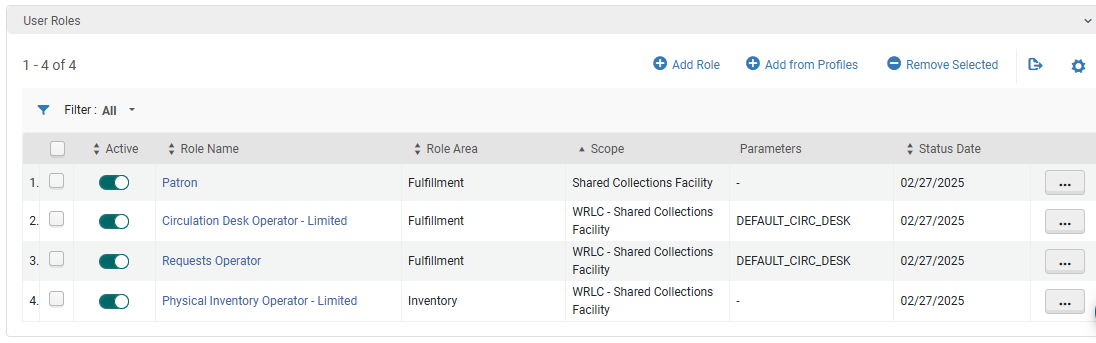
- <span style="font-family: -apple-system, BlinkMacSystemFont, 'Segoe UI', Oxygen, Ubuntu, Roboto, Cantarell, 'Fira Sans', 'Droid Sans', 'Helvetica Neue', sans-serif; font-size: 14px; font-style: normal; font-variant-ligatures: normal; font-variant-caps: normal; font-weight: 400;">When creating user profiles for affiliate libraries, make sure the following fields have the correct values:</span>
    - <span style="font-family: -apple-system, BlinkMacSystemFont, 'Segoe UI', Oxygen, Ubuntu, Roboto, Cantarell, 'Fira Sans', 'Droid Sans', 'Helvetica Neue', sans-serif; font-size: 14px; font-style: normal; font-variant-ligatures: normal; font-variant-caps: normal; font-weight: 400;">***General Information*** tab</span>
        - <span style="font-family: -apple-system, BlinkMacSystemFont, 'Segoe UI', Oxygen, Ubuntu, Roboto, Cantarell, 'Fira Sans', 'Droid Sans', 'Helvetica Neue', sans-serif; font-size: 14px; font-style: normal; font-variant-ligatures: normal; font-variant-caps: normal; font-weight: 400;">Primary ID = work email address</span>
        - <span style="font-family: -apple-system, BlinkMacSystemFont, 'Segoe UI', Oxygen, Ubuntu, Roboto, Cantarell, 'Fira Sans', 'Droid Sans', 'Helvetica Neue', sans-serif; font-size: 14px; font-style: normal; font-variant-ligatures: normal; font-variant-caps: normal; font-weight: 400;">User Group = user group created in step #1</span>
        - <span style="font-family: -apple-system, BlinkMacSystemFont, 'Segoe UI', Oxygen, Ubuntu, Roboto, Cantarell, 'Fira Sans', 'Droid Sans', 'Helvetica Neue', sans-serif; font-size: 14px; font-style: normal; font-variant-ligatures: normal; font-variant-caps: normal; font-weight: 400;">Password = create a temporary password for the user, checkmark ***Force password change on next login***</span>
        - <span style="font-family: -apple-system, BlinkMacSystemFont, 'Segoe UI', Oxygen, Ubuntu, Roboto, Cantarell, 'Fira Sans', 'Droid Sans', 'Helvetica Neue', sans-serif; font-size: 14px; font-style: normal; font-variant-ligatures: normal; font-variant-caps: normal; font-weight: 400;">User Roles (the following are necessary to allow for users to log into the SCF IZ and create requests through Alma)</span>
            - <span style="font-family: -apple-system, BlinkMacSystemFont, 'Segoe UI', Oxygen, Ubuntu, Roboto, Cantarell, 'Fira Sans', 'Droid Sans', 'Helvetica Neue', sans-serif; font-size: 14px; font-style: normal; font-variant-ligatures: normal; font-variant-caps: normal; font-weight: 400;">Patron</span>
            - <span style="font-family: -apple-system, BlinkMacSystemFont, 'Segoe UI', Oxygen, Ubuntu, Roboto, Cantarell, 'Fira Sans', 'Droid Sans', 'Helvetica Neue', sans-serif; font-size: 14px; font-style: normal; font-variant-ligatures: normal; font-variant-caps: normal; font-weight: 400;">Circulation Desk Operator - Limited</span>
            - <span style="font-family: -apple-system, BlinkMacSystemFont, 'Segoe UI', Oxygen, Ubuntu, Roboto, Cantarell, 'Fira Sans', 'Droid Sans', 'Helvetica Neue', sans-serif; font-size: 14px; font-style: normal; font-variant-ligatures: normal; font-variant-caps: normal; font-weight: 400;">Requests Operator</span>
            - <span style="font-family: -apple-system, BlinkMacSystemFont, 'Segoe UI', Oxygen, Ubuntu, Roboto, Cantarell, 'Fira Sans', 'Droid Sans', 'Helvetica Neue', sans-serif; font-size: 14px; font-style: normal; font-variant-ligatures: normal; font-variant-caps: normal; font-weight: 400;">Physical Inventory Operator - Limited</span>

<span style="font-family: -apple-system, BlinkMacSystemFont, 'Segoe UI', Oxygen, Ubuntu, Roboto, Cantarell, 'Fira Sans', 'Droid Sans', 'Helvetica Neue', sans-serif; font-size: 14px; font-style: normal; font-variant-ligatures: normal; font-variant-caps: normal; font-weight: 400;">[![aff_lib_config12.PNG](https://alma-documentation-bookstack-stage.azurewebsites.net/uploads/images/gallery/2025-02/scaled-1680-/aff-lib-config12.PNG)](https://alma-documentation-bookstack-stage.azurewebsites.net/uploads/images/gallery/2025-02/aff-lib-config12.PNG)</span>

- - <span style="font-family: -apple-system, BlinkMacSystemFont, 'Segoe UI', Oxygen, Ubuntu, Roboto, Cantarell, 'Fira Sans', 'Droid Sans', 'Helvetica Neue', sans-serif; font-size: 14px; font-style: normal; font-variant-ligatures: normal; font-variant-caps: normal; font-weight: 400;">***Contact Information*** tab</span>
        - <span style="font-family: -apple-system, BlinkMacSystemFont, 'Segoe UI', Oxygen, Ubuntu, Roboto, Cantarell, 'Fira Sans', 'Droid Sans', 'Helvetica Neue', sans-serif; font-size: 14px; font-style: normal; font-variant-ligatures: normal; font-variant-caps: normal; font-weight: 400;">Add address of affiliate library as the work address</span>

##### 10. Update letter configuration for pull slip

- Configuration &gt; General &gt; Letters &gt; Letters Configuration
- Search for the letter titled ***Ful Resource Request Slip Letter***, choose ***Edit***
- Edit the XSL around line 100 to include the following example
- Click ***Save Draft***
- Click ***Save***

```
<!--   Internal Alma request from affiliate institution [Insert affiliate library here}   -->
<xsl:when test="(notification_data/user_for_printing/user_group='[User Group Code]')">
<font size ="40px;">[Affiliate Library Name]</font>
</xsl:when>
```